Learn networking by breaking it.
Don’t just watch the packet drop. See why it did.
Every failed ping in zNetLaB says where the packet stopped, why, and what to try next — in a browser simulator you can try free and on real Cisco, Juniper and Arista images, read by one packet analyser. Nothing to install.
- 2000+guided labs, every task checked
- 122platforms recognised by name
- 16free courses, CCNA to CCIE
- $0.00every lesson; the simulator free to try for 5 days
A lab coming up, from an empty canvas to a real capture
Nothing here is a mock-up of a different product. These are the real commands, the real boot messages, the real interface names and the real columns of the capture window — playing at the speed you would see them.
Drag the devices in, click one port then the other. Sixty devices to a topology, saved to your browser and to your account as you work.
Loading ios-adventerprisek9-M.bin Cisco IOS Software, IOSv Software Press RETURN to get started R1 is running · console ready
One device, not the lab. About fifty seconds, and most of it is IOS waking up inside the image rather than the server thinking.
The console in the page, or over telnet from your own terminal. They share one session, so two people can watch one router.
A real .pcap, not an impression of one. Capture any
link while the lab runs, and read every header layer by layer.
Every lesson: free, permanently.
The simulator: free to try.
Lessons and articles stay free. The simulator is free for 5 days, and for 15 days for the first 100 new accounts; then it is a low-cost subscription. The lab server is where real-image plans start.
What zNetLaB is
One account, three ways to practise: a simulator that runs inside this browser tab, a lab server that boots open-source devices and the licensed images you upload, and zNetLaB Desktop, the same lab on your own Windows or Linux computer.
- The problem. Lab software costs money, will not install, or needs more memory than your laptop has — and later, a teaching simulator cannot show you real software.
- Simulator. Runs in your browser, with a free trial first and low-cost plans after.
148 devices with the command lines of Cisco IOS, IOS XE, IOS XR, NX-OS and ASA, Junos,
Arista EOS, FortiOS, PAN-OS and more. The
?descriptions are in our own words. - Real labs. Open-source devices for everyone, plus the vendor images you are
licensed to run (IOSv, CSR1000v, Nexus, ASAv, vSRX, vEOS…) under Dynamips, QEMU or Docker
on a Linux server, with
consoles and
tcpdumpcaptures. zNetLaB ships no vendor software. - Desktop. One setup program on Windows 10 and 11 (one command on Linux). It switches on WSL2, installs zNetLaB and its open-source devices, and opens signed in: no VMware, VirtualBox or GNS3 VM to set up. What it does by itself.
- 2000+guided labs that mark themselves, from a two-router static route up to an MPLS core and an SD-WAN fabric
- 122real platforms recognised by name (Cisco naming, EVE-NG
folders, GNS3
.gns3afiles), each with the right RAM, disk bus and interface naming - $0.00for every lesson and article, permanently. The simulator is free to try for 5 days, 15 days for the first 100 new accounts
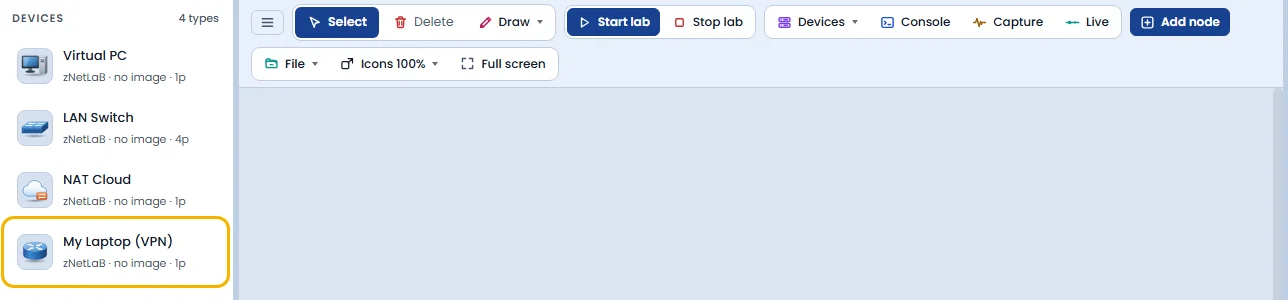
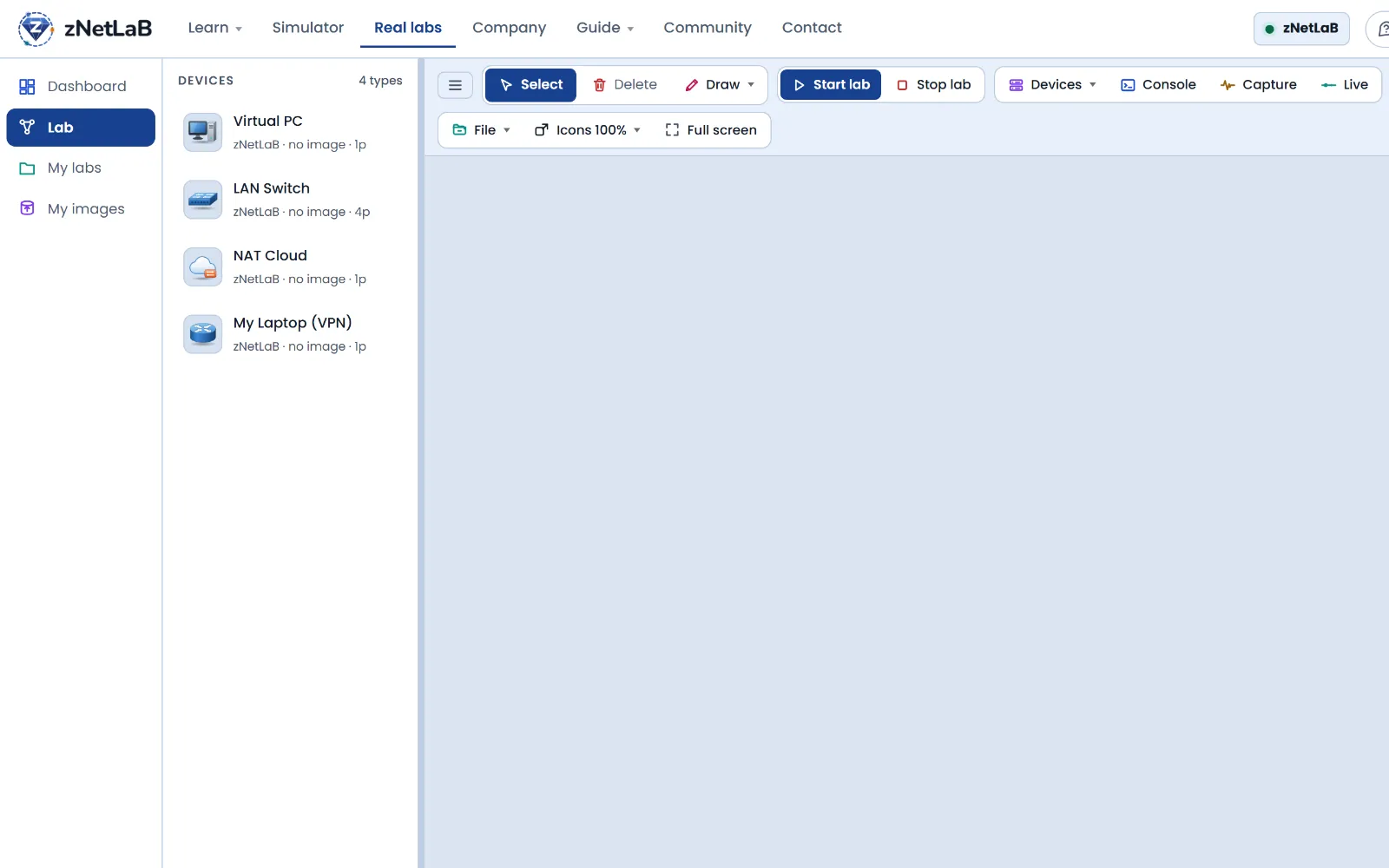
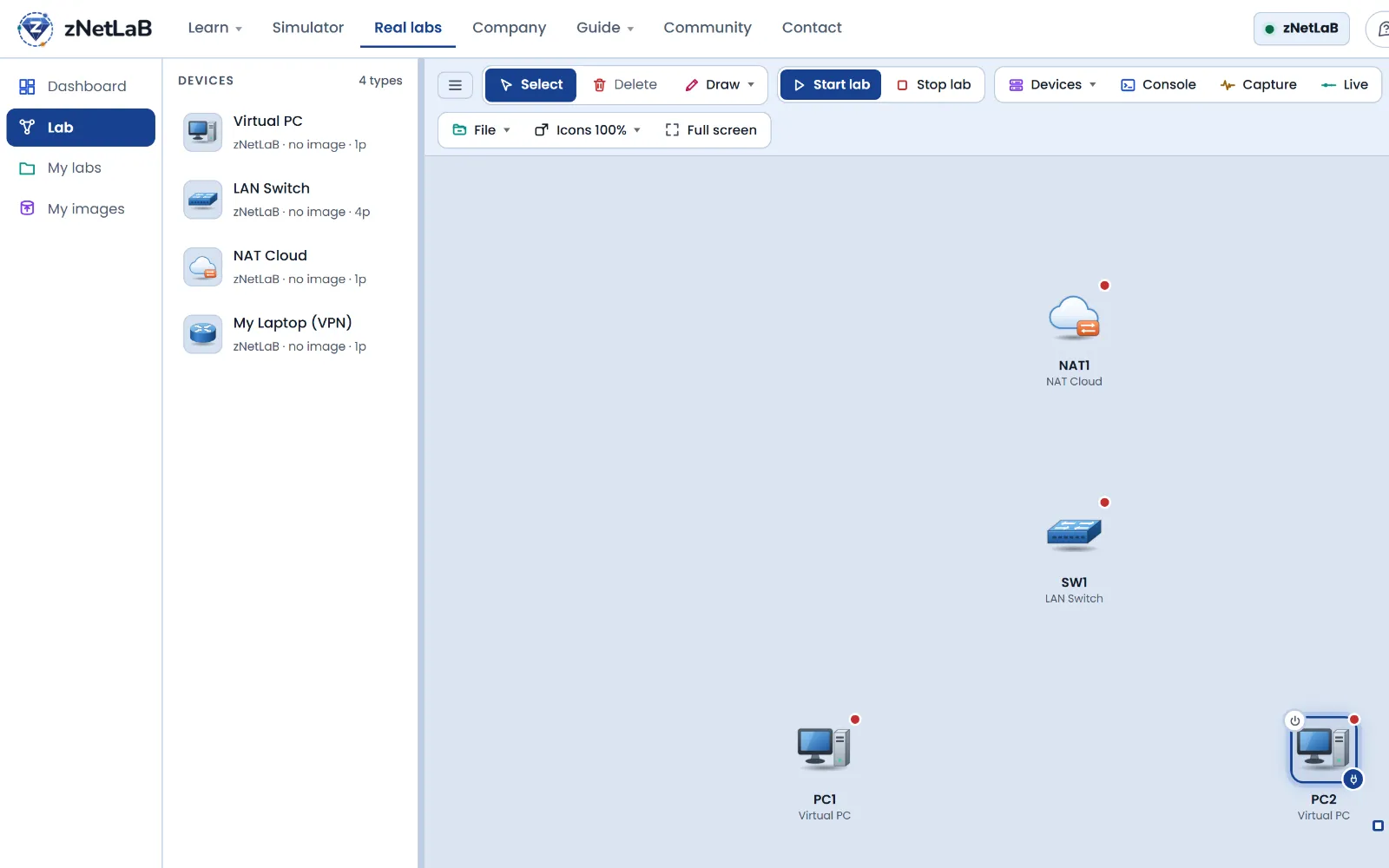
- 4device types that need no image at all: Virtual PC, LAN Switch, NAT Cloud and My Laptop (VPN), and they are never counted against a plan
Learn & Simulate
A simulator with the command lines of the real devices, and guided labs that check your work. It runs entirely in your own browser, so you can try all of it free before you pay anything.
- ✓148 devices: Cisco IOS, IOS XE, IOS XR, NX-OS and ASA, Junos, Arista EOS, FortiOS, PAN-OS, Check Point, Huawei VRP, MikroTik, Aruba, Nokia SR OS, VyOS and FRRouting — with
?and Tab help in every mode - ✓The commands and modes of each vendor's command line, with the help text in our own words
- ✓Routing, switching, MPLS, QoS, firewalls, SD-WAN, IPv6
- ✓2000+ guided labs that verify each task as you finish it
- ✓Wireshark-style packet capture — layer tree, hex, display filters,
.pcapexport — and topology export - ✓Articles, blogs and a forum
- ✓5-day free trial, no card needed; after it, 177 labs (every Beginner lab and the first lab of each new topic) and 3 saved labs stay free
Real labs
Open-source devices from our library, and your own licensed vendor images — IOSv, CSR1000v, Nexus, ASAv, vSRX, vEOS — booting under Dynamips, QEMU or Docker on a server, with consoles you can reach from your own terminal and captures that open in any protocol analyser. Nothing to install on your machine.
- ✓122 platforms recognised from their image filenames
- ✓Virtual PC, LAN Switch, NAT Cloud and My Laptop (VPN) need no image at all
- ✓Consoles shared over plain telnet with any terminal
- ✓Real
tcpdumpcapture, exported as.pcap - ✓Link conditioning: bandwidth, delay, jitter, loss
- ✓Free plan included — two image devices per lab, to try it; Virtual PCs are not counted
From a lesson to a running network
The same account carries you from the first lab to genuine vendor software.

Open a guided lab
The topology is drawn for you, with the objective, the starting point and the tasks beside it, and each task is checked against the running network as you finish it.
Open any device
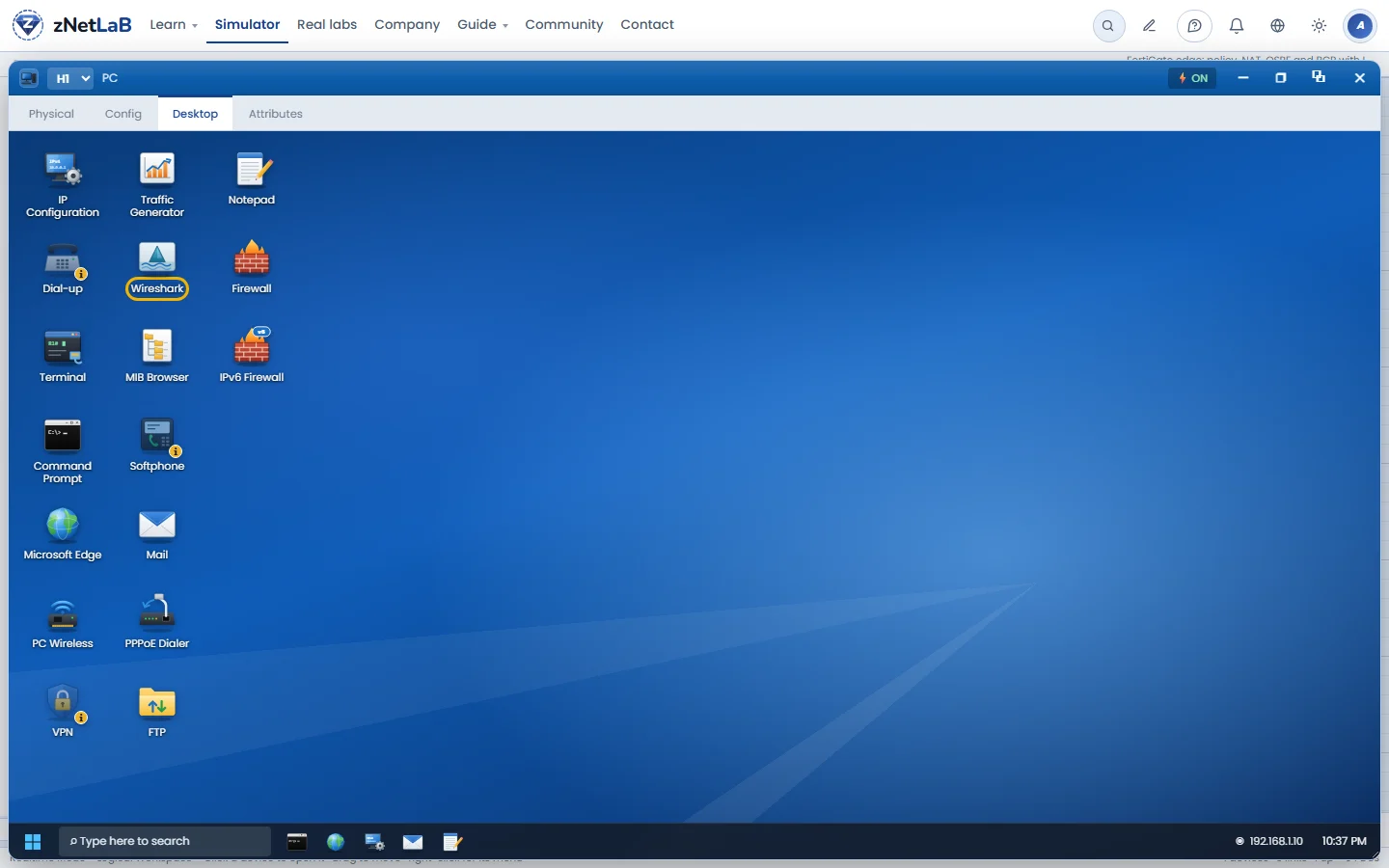
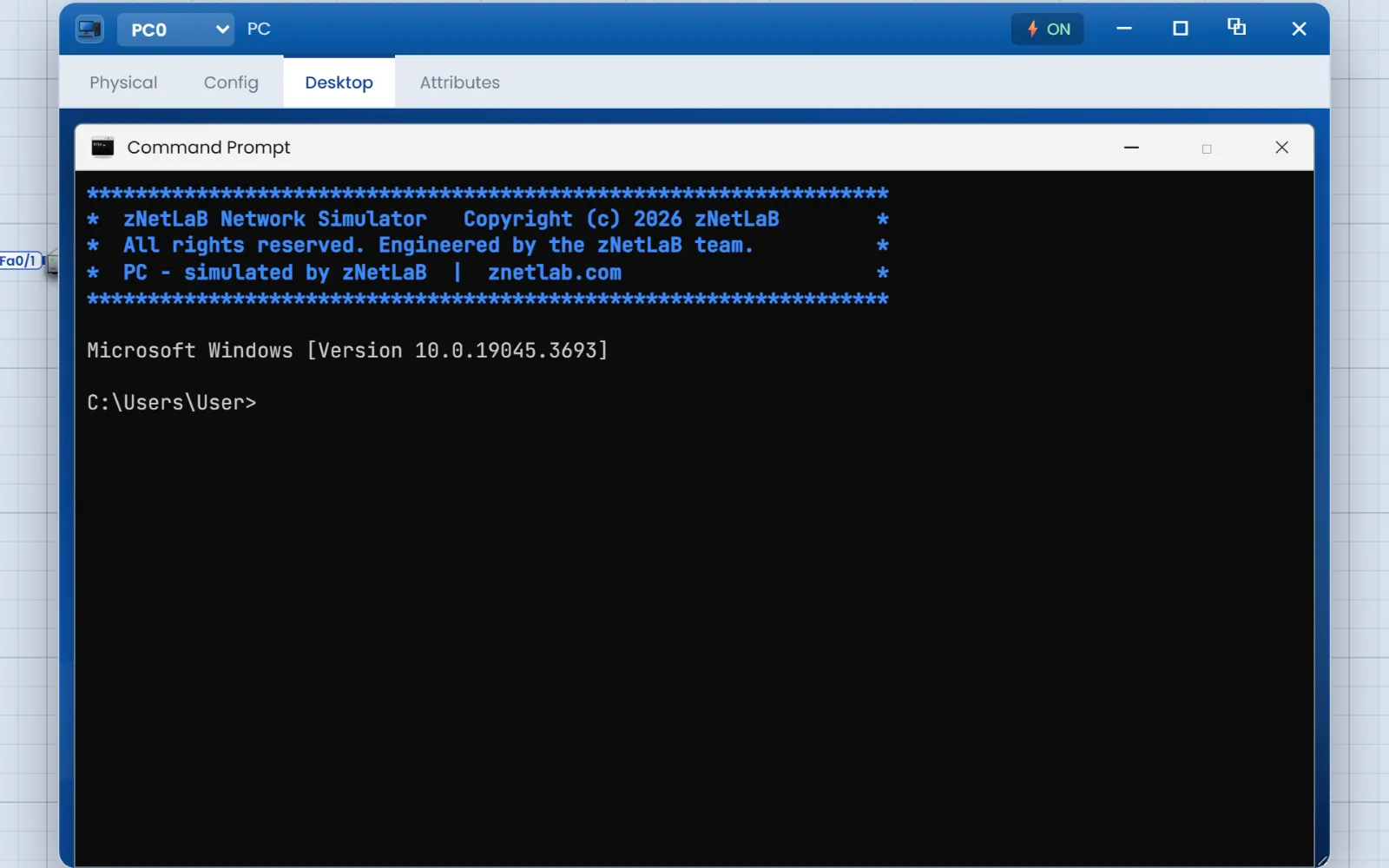
Click a device and its console opens, with the same command completion a real one has. A PC has a desktop of its own, with a terminal, a browser and a packet analyser.
Capture the traffic
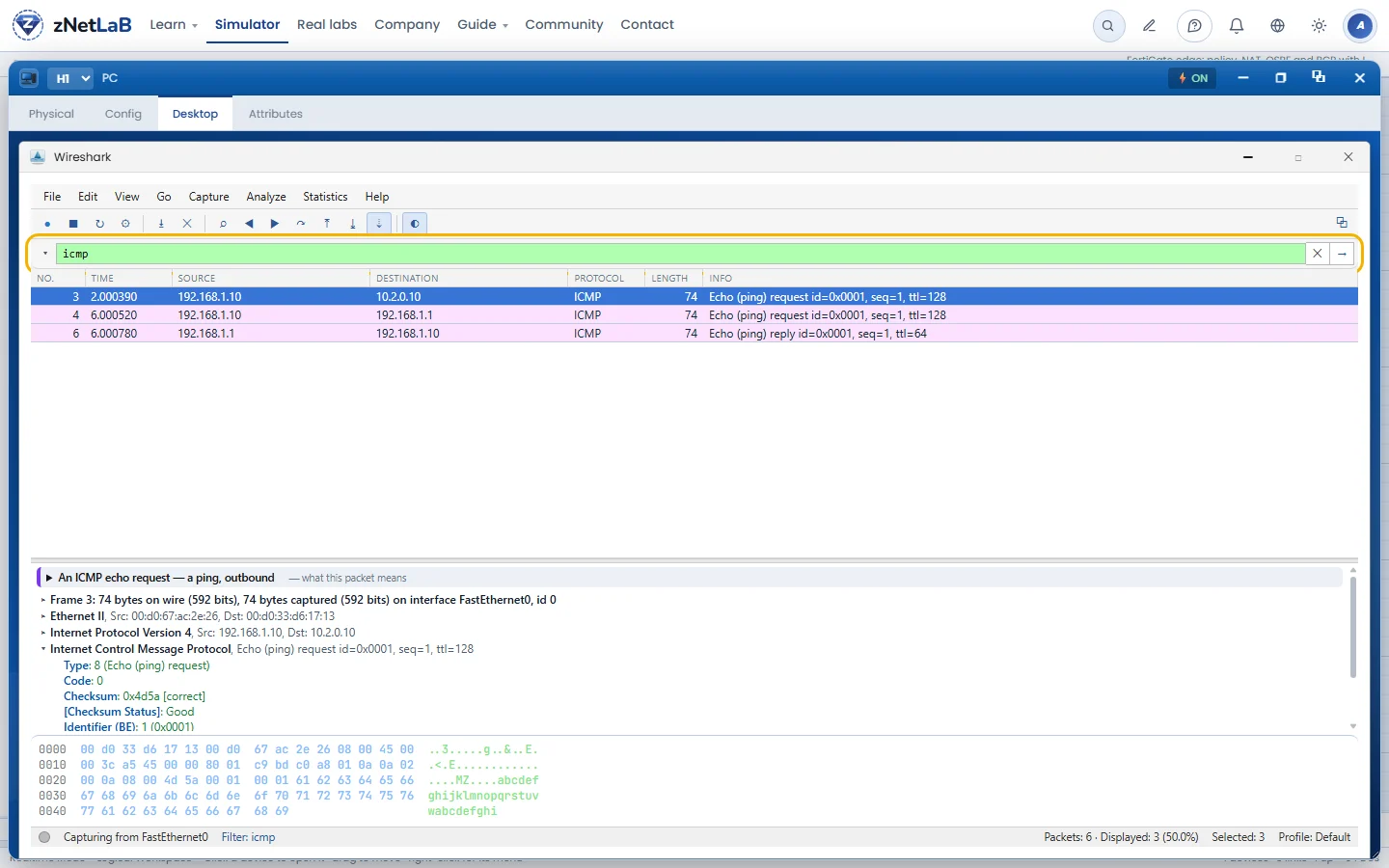
Wireshark-style packet capture: a layer tree, hex, display filters and .pcap export, with every packet explained in plain words.
Manage it like the real thing
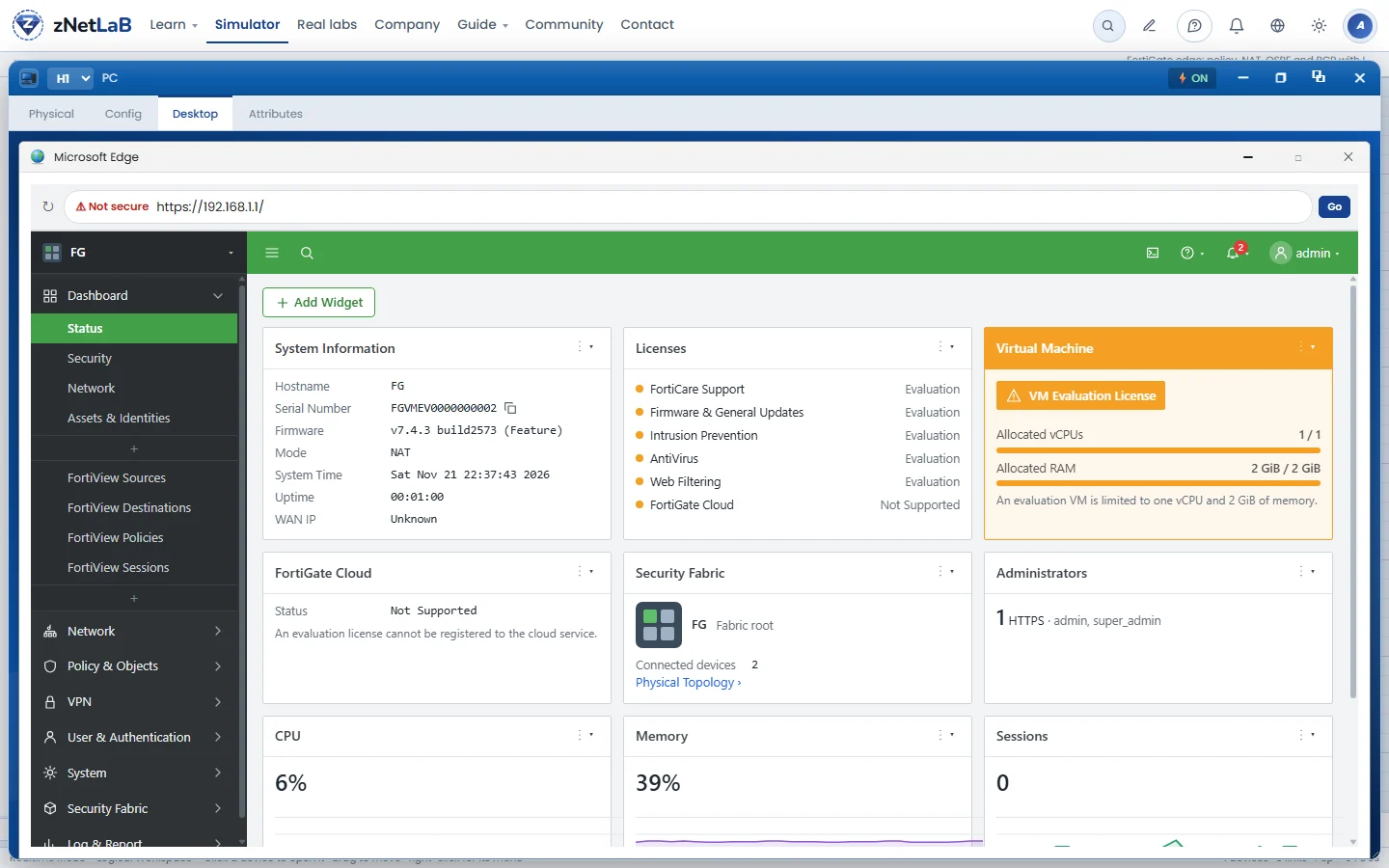
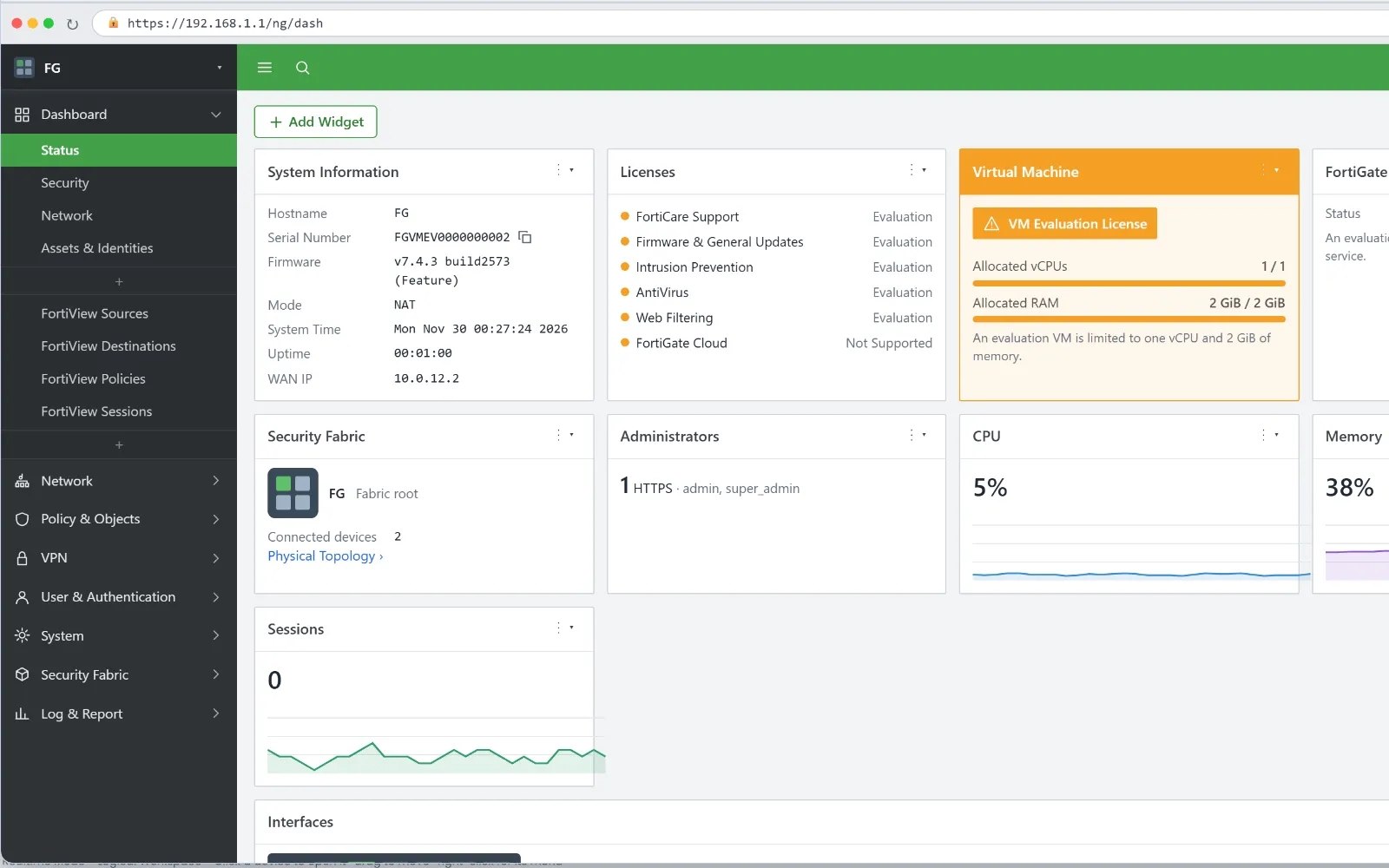
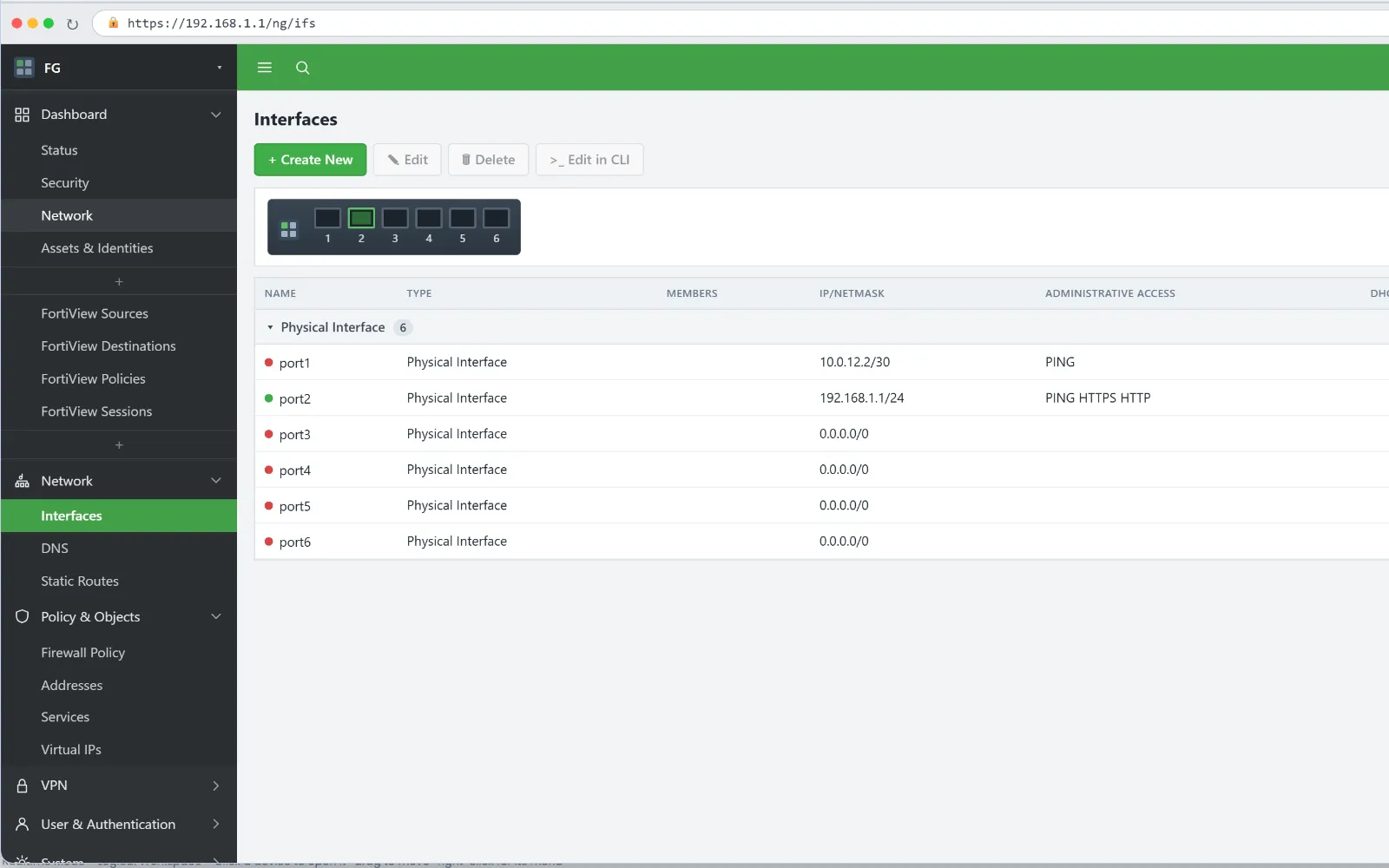
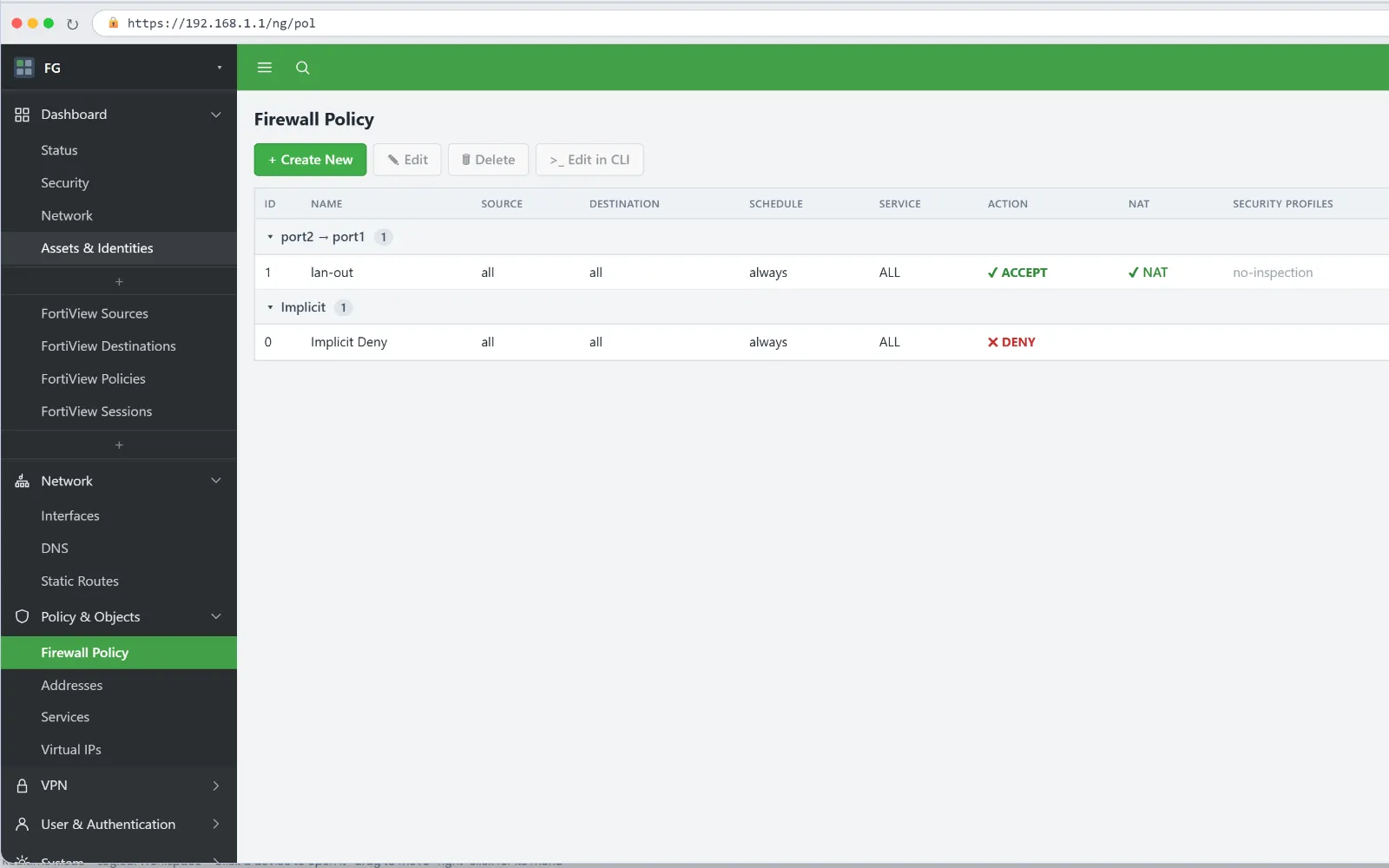
Open a firewall's web dashboard from the PC's browser, the way you would on the job — it is driven by the same configuration as its command line.
Move to real images
When you need genuine vendor software, the same account boots open-source devices and your own licensed images on a lab server, with consoles and tcpdump captures.
zNetLaB Desktop: install one program, it sets up the rest
The real-lab half of zNetLaB on your own computer, working offline. You do not install a hypervisor, a VM, a Linux distribution or a set of tools first: the setup program does each of those steps itself.
One setup program
Setup switches on WSL2, the Linux built into Windows, restarts once if Windows needs it and carries on by itself after you sign back in. No VMware, VirtualBox or GNS3 VM. On Linux it is one command.
Devices ready on day one
FRRouting, OpenWrt, Alpine Linux and Tiny Core are installed with it, VyOS if you want it, plus Virtual PCs, LAN Switches and NAT Clouds. None of them needs a licence.
Your images, recognised
Add your licensed Cisco, Juniper, Arista, Fortinet and other images under My images: 122 platforms are recognised from the file name and get the right memory, disk bus and interface names. Cisco IOL runs with your own iourc licence.
Fits your PC
Each device gets the memory it needs when the PC has room, and less, down to what it is known to boot with, when it does not. Windows always keeps its share, and a heavy lab offers to pause apps you pick until it is over.
Opens like any program
On Windows a Start-menu icon opens the lab in a window of its own, already signed in. When nothing has run for an hour it stops and gives the memory back; the icon starts it again in seconds.
Offline, and private
After installing, nothing needs the internet. Labs, images and settings stay on your computer and are not sent to us; Desktop does not count visits.
A network that actually runs
The simulator is zNetLaB's own software. Protocols form sessions, build tables and forward packets, so a lab is marked on what the network does, not on the text you typed.
The commands you will use at work
Each device takes the commands and modes of its vendor's command line, and show
output keeps the layout you will meet on the job. The ? descriptions are written
by zNetLaB.
Behaviour you can test
Whole scenarios are run as automatic tests: MPLS L3VPN from customer to customer, DMVPN phase 3, BGP path selection and PIM with a BSR. A change in the network changes the result.
Honest about the edge
The simulator does not run every command of every release. A command it does not simulate is answered as not simulated, never with invented output. For those, the Real labs boot images you are licensed to use, on a lab server or on Desktop.
Data centre
VXLAN EVPN with L2 and L3 VNIs, ARP suppression, and vPC with a peer-link and a dual-homed host.
Firewalls
ASA Active/Standby and stateful failover, site-to-site IKEv2 VPN to an IOS router, and NAT and connection logs.
VPNs
GET VPN with a key server, group members and rekeying, DMVPN, and MPLS L3VPN.
Service provider
LDP, MPLS forwarding with labels you can trace, segment routing and traffic engineering.
Free to keep learning, and ready for the job
The same account carries you from the first lab to the interview.
A free plan that stays
After the 5-day trial you keep 177 labs (all 133 Beginner labs and the first lab of each new topic) and 3 saved labs, free, for as long as you like. The other labs open with a plan.
Mock interview
A live voice call with Aria, our AI interviewer: she asks her own questions for your job and level, follows up on what you say, and the panel marks every answer. Free account; study notes included.
A certificate you can show
Pass any of the 16 timed track exams, marked on our server, and get a certificate with your name and a number anybody can verify.
Teams
For a class, a training centre or a company, from 3 people: the whole simulator, the Standard real-lab plan and the Company portal for every member, on one invoice.
Your outages, turned into drills
In the Company portal, a resolved incident becomes a troubleshooting drill. The simulator rebuilds the network from the config backups before and after the fix, finds what broke, and removes the secrets. The whole team can practise on it.
Hands-on hiring tests
Email a candidate a link to a broken network. They need no account. Every command is recorded, the score comes from what they actually fixed, broke and checked, and you can replay the whole session.
Free courses and guided labs
Start with a lesson, practise it in a lab that checks your work, then test yourself with questions that explain the answers.
Free courses
16 courses, a lesson per topic, with practice questions and explanations. Each has a timed exam and a certificate.
All free courses → · Exams & certificates · Your learning roadmap
Guided network labs
Build the topology, type the commands, and see each task checked against the running configuration.
Read, ask and compare
Articles and answers from members, and an honest comparison with the other simulators.
Networking articles · Questions and answers · zNetLaB compared with GNS3, EVE-NG and Packet Tracer · Networking CV builder · Your learning roadmap
This is the simulator, and the real labs
Not an artist's impression and not a competitor's screenshot — the actual workspace, captured from the running app. Swipe, or use the arrows.
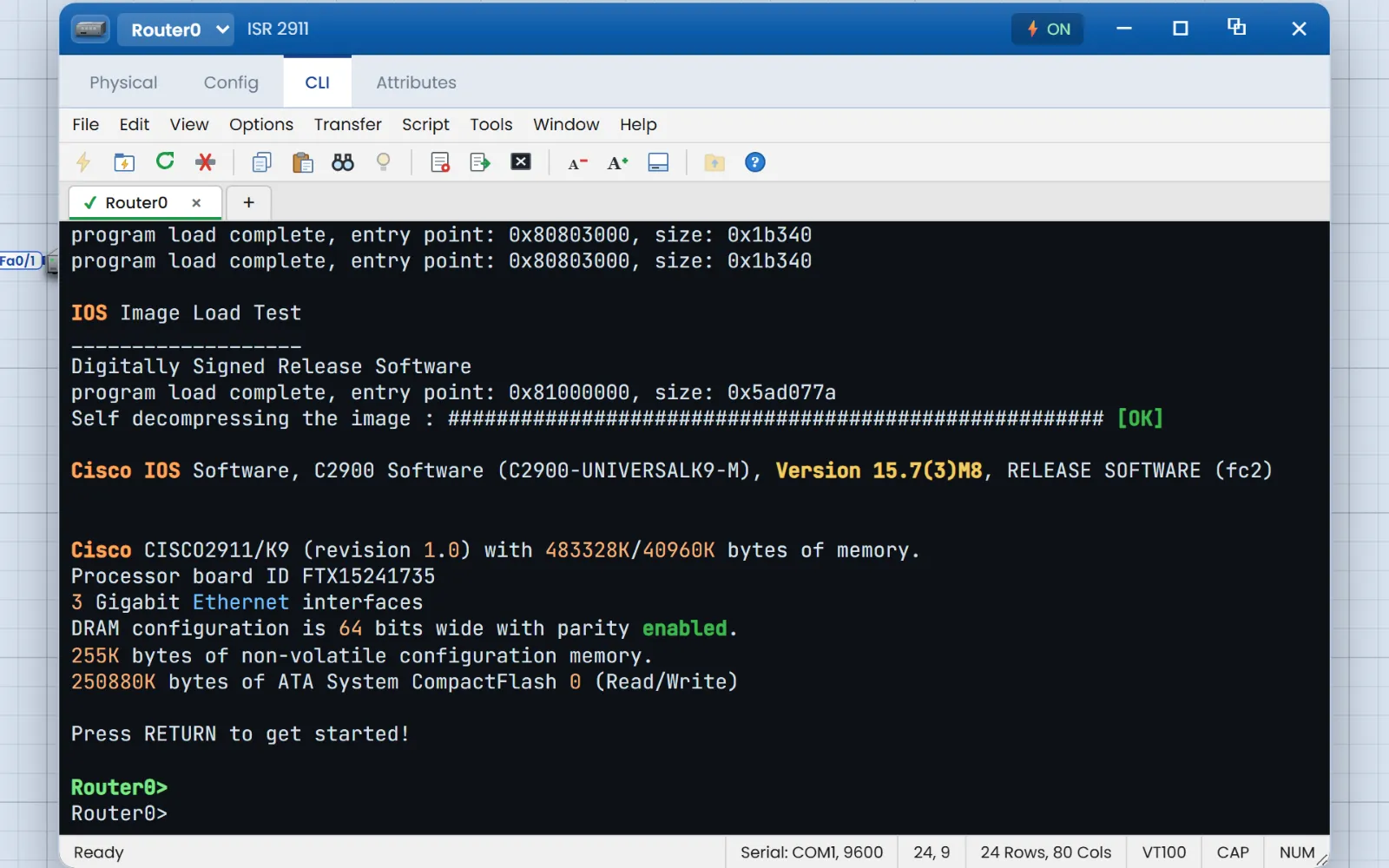
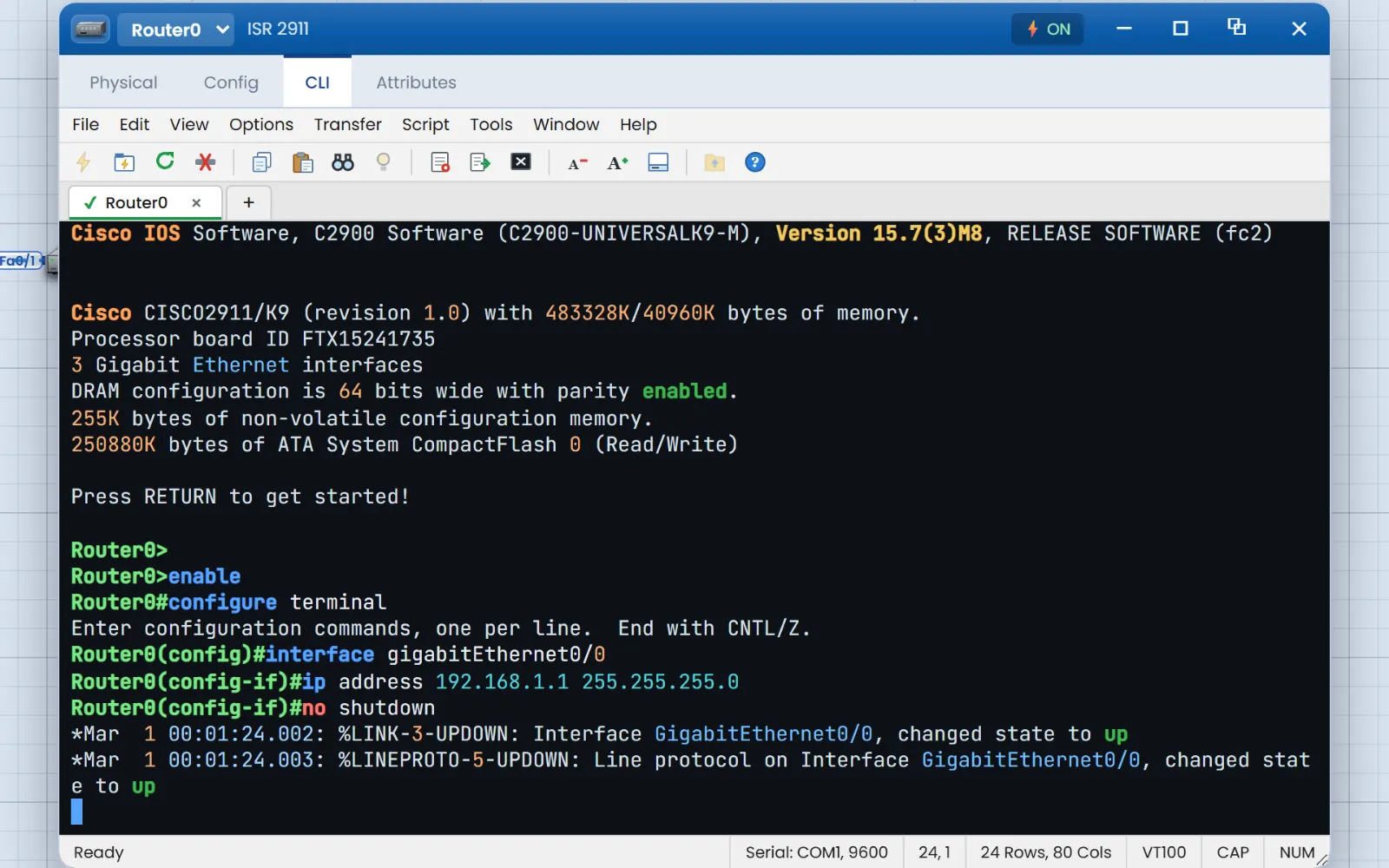
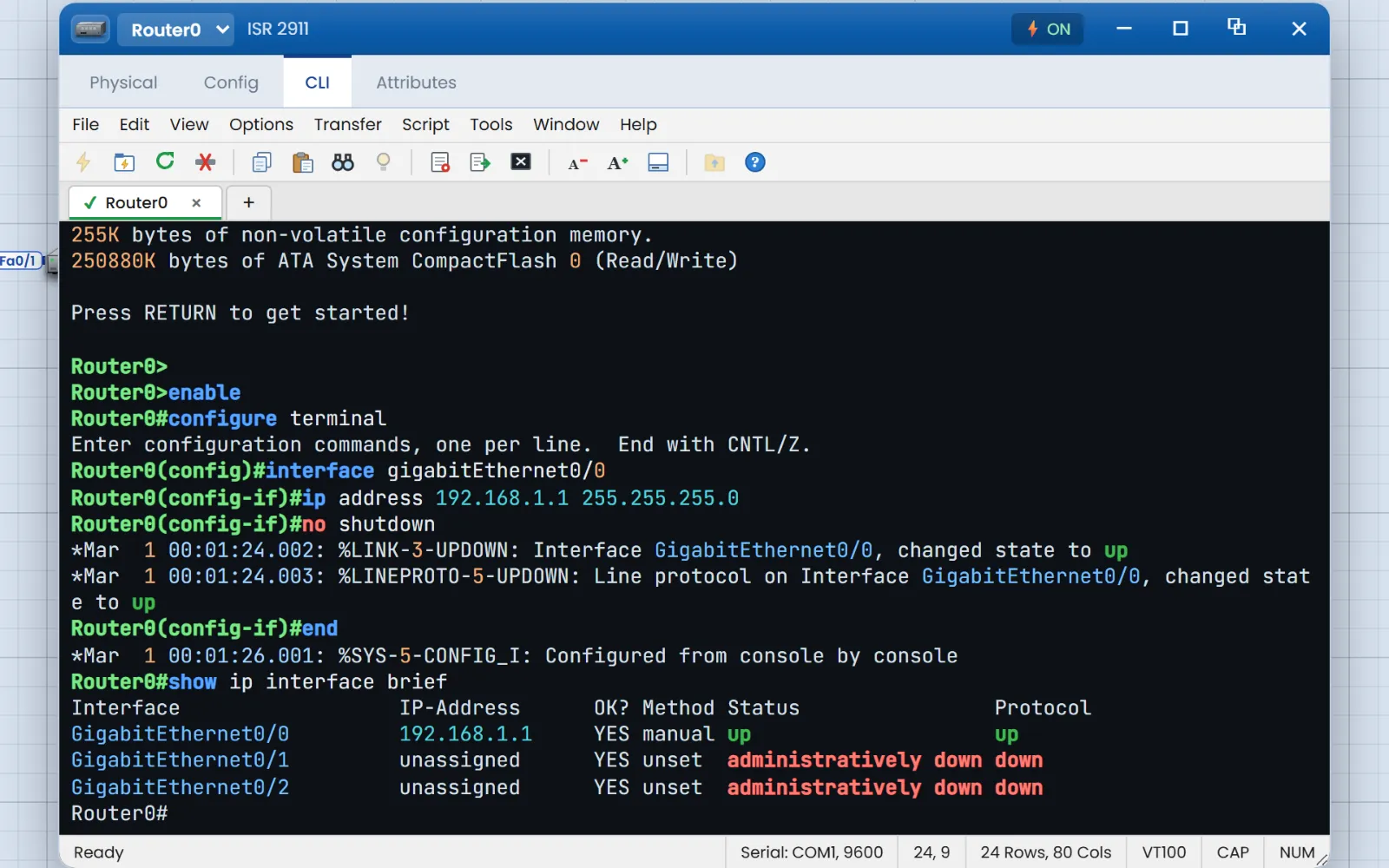
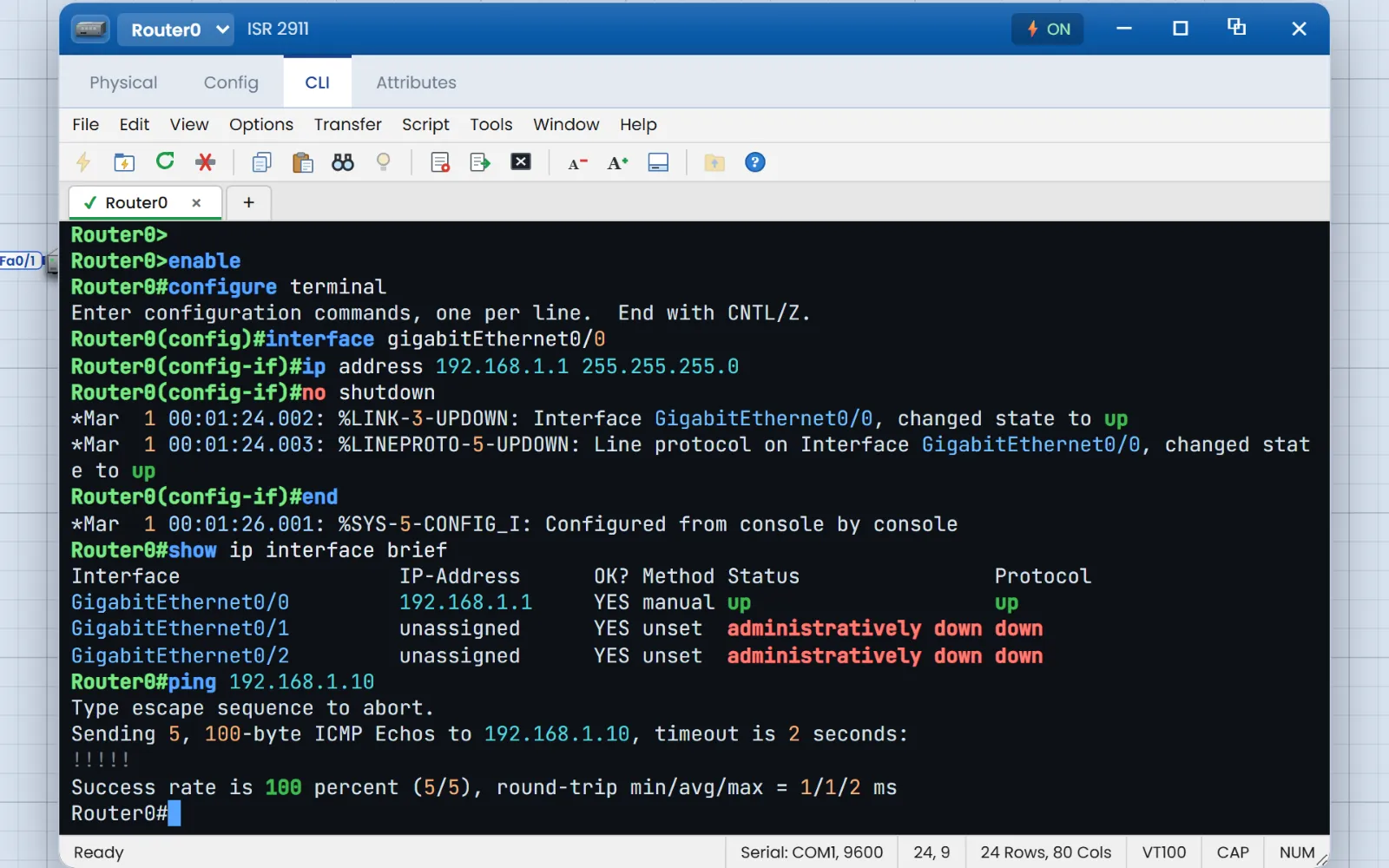
- Open the console
- Address Gi0/0, no shutdown
show ip interface briefping— !!!!!
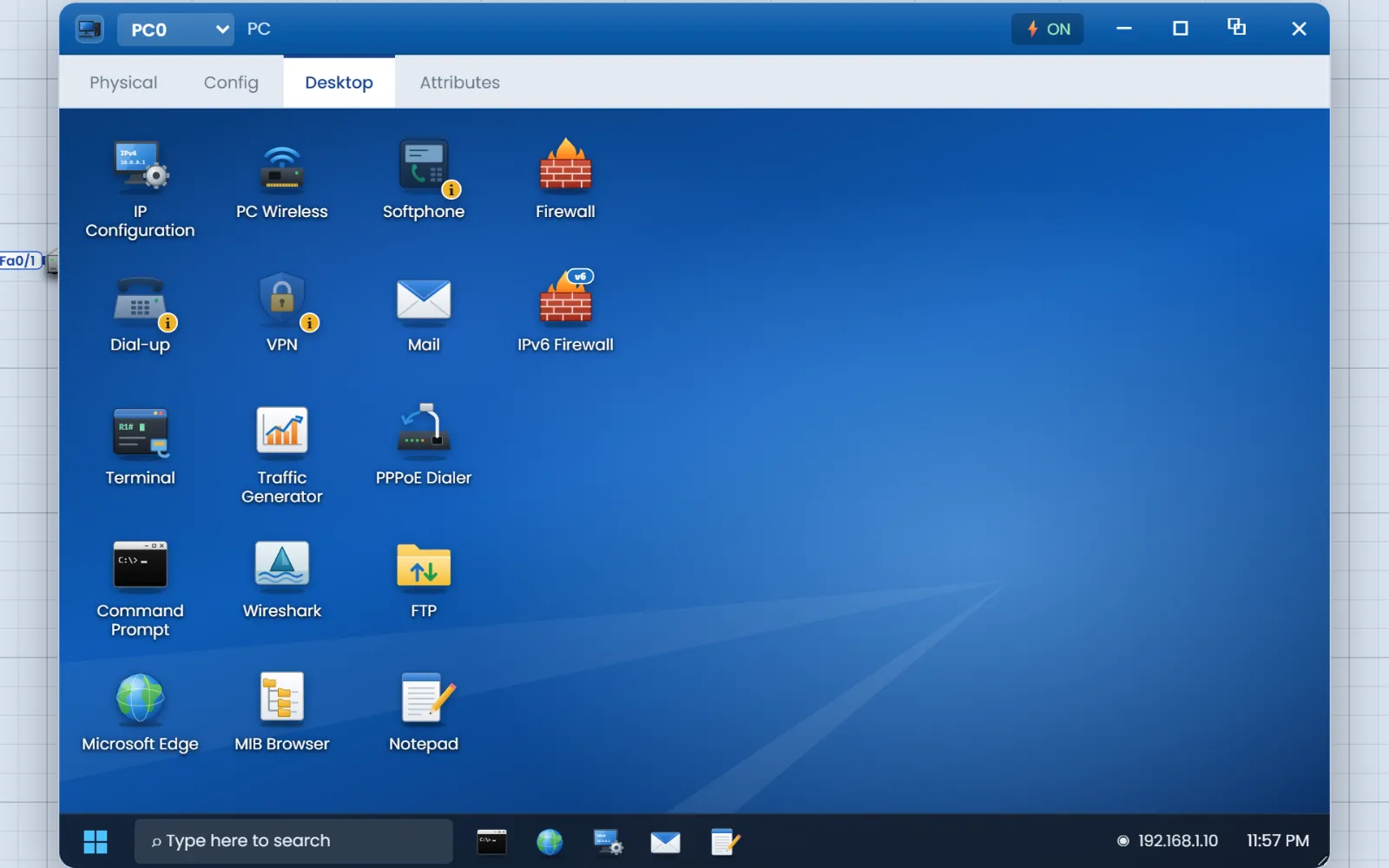
- The PC’s desktop
- Command Prompt
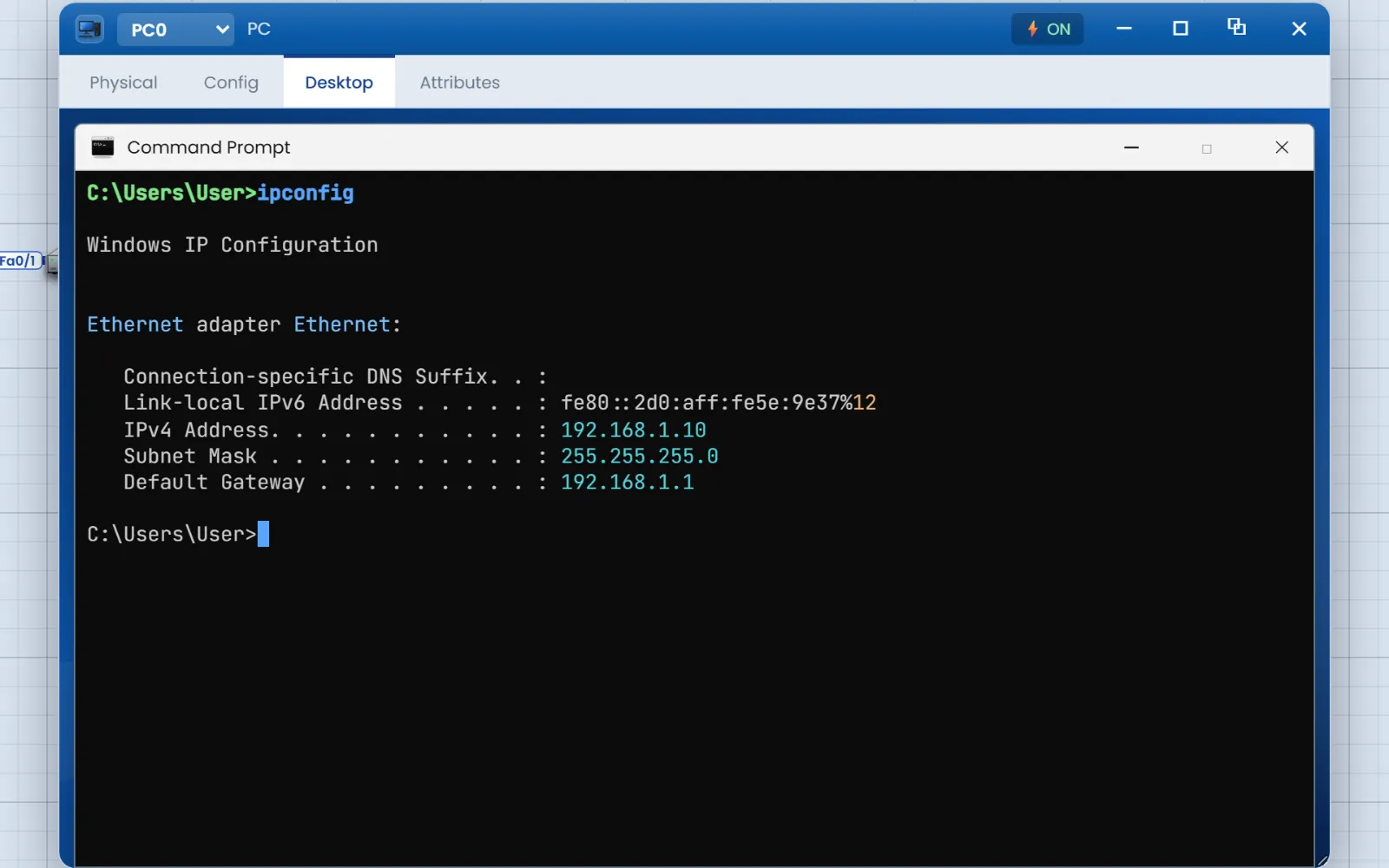
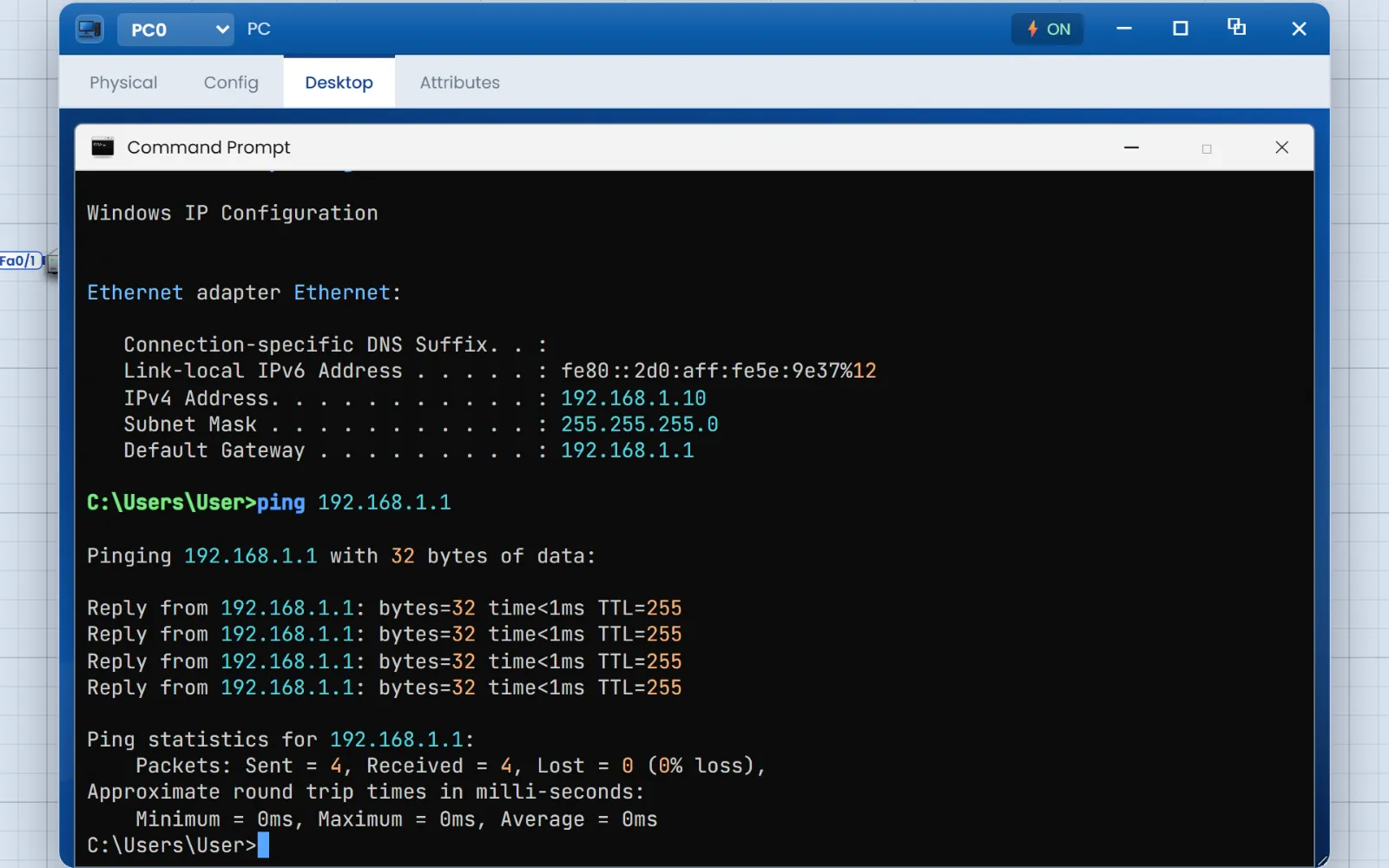
ipconfigpingthe gateway
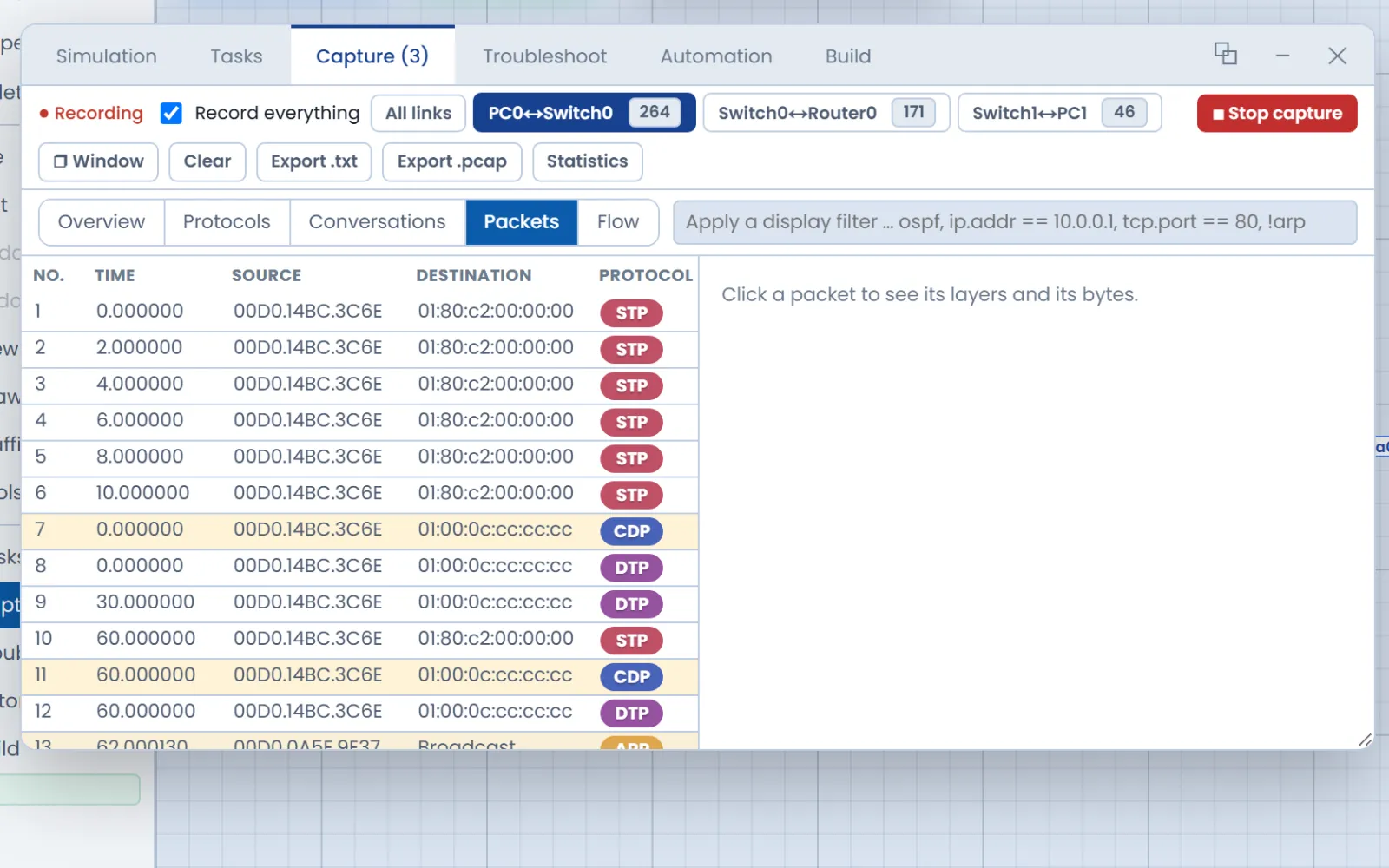
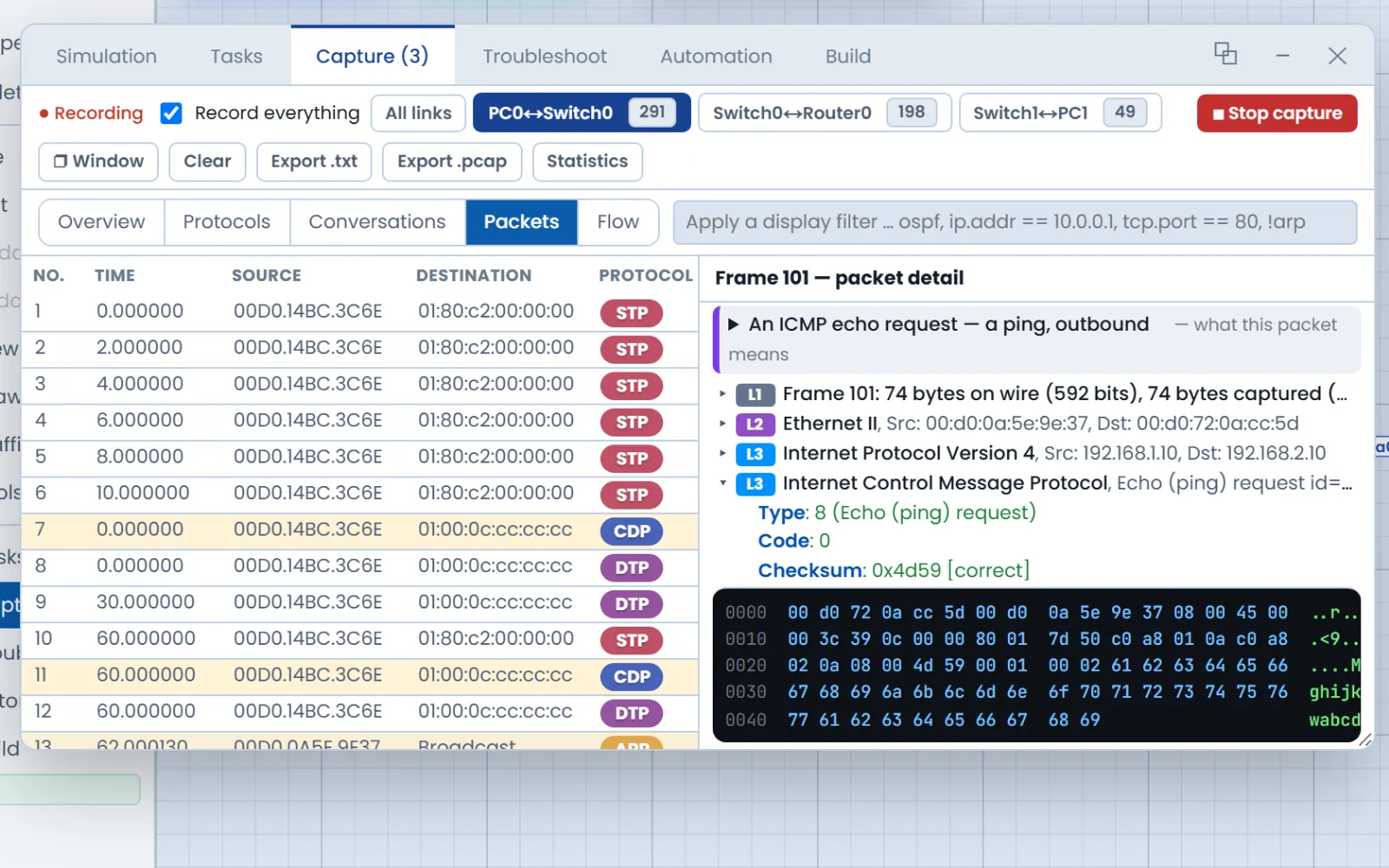
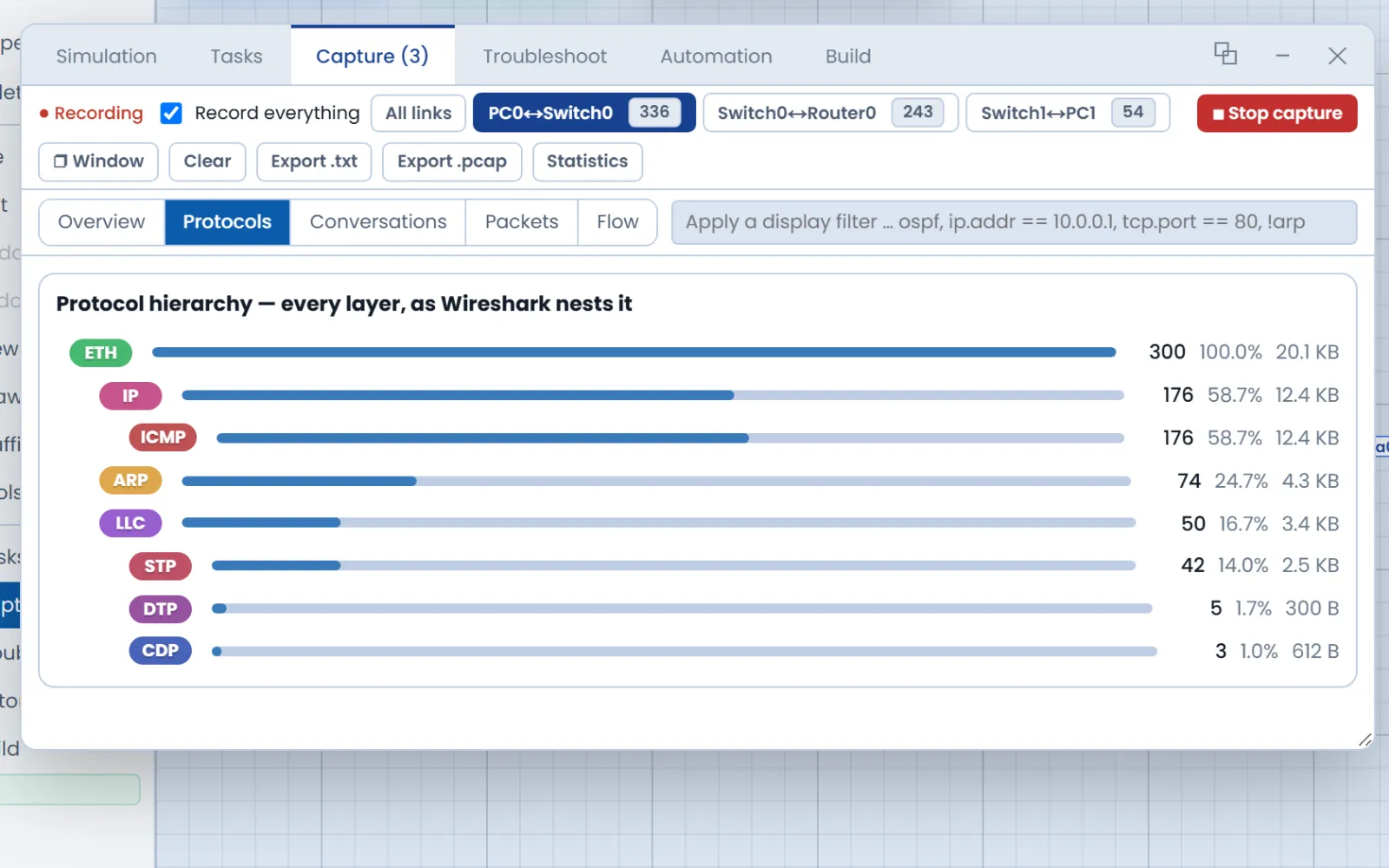
.pcap.- Frames on the link
- One frame, layer by layer
- Protocol hierarchy
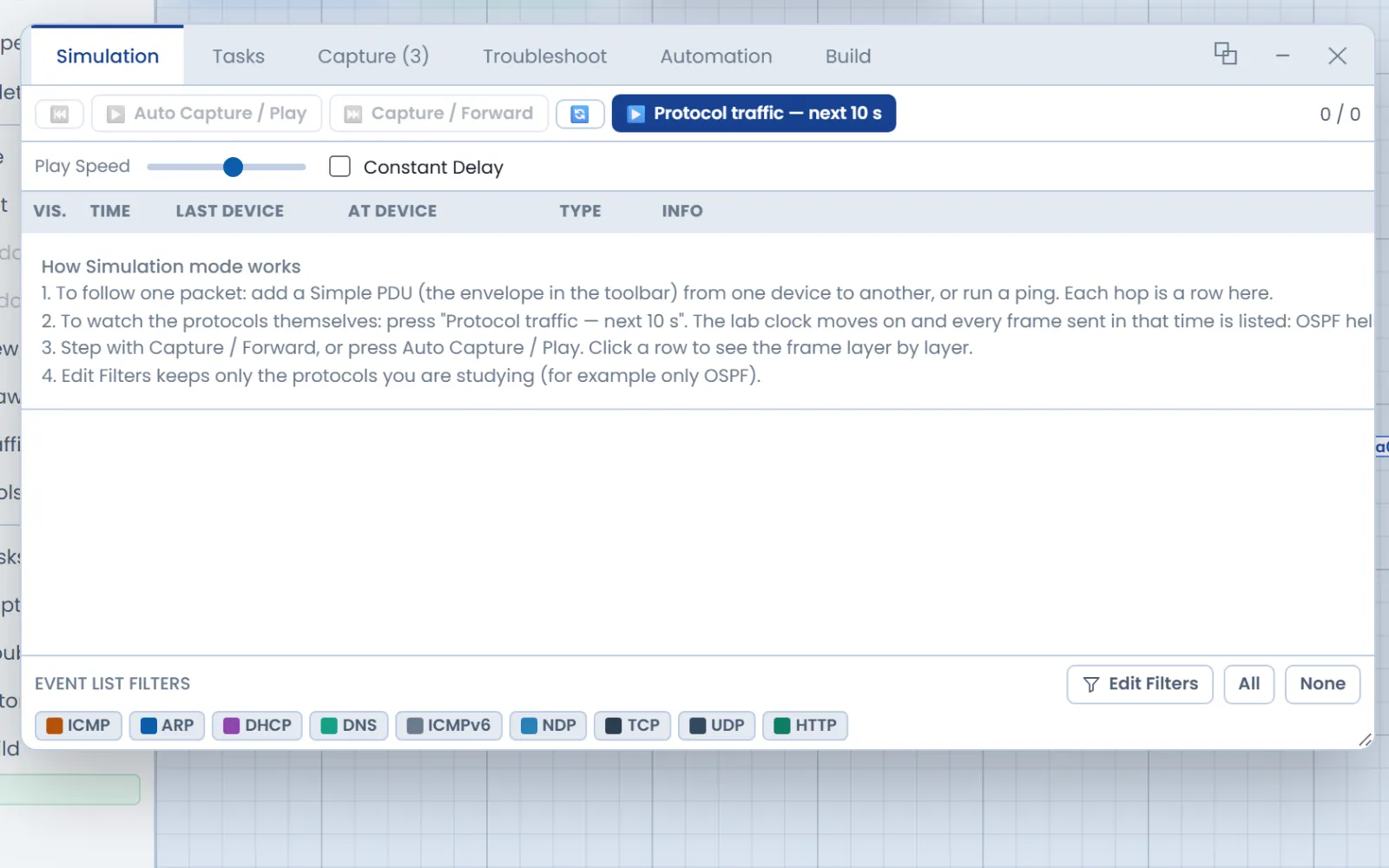
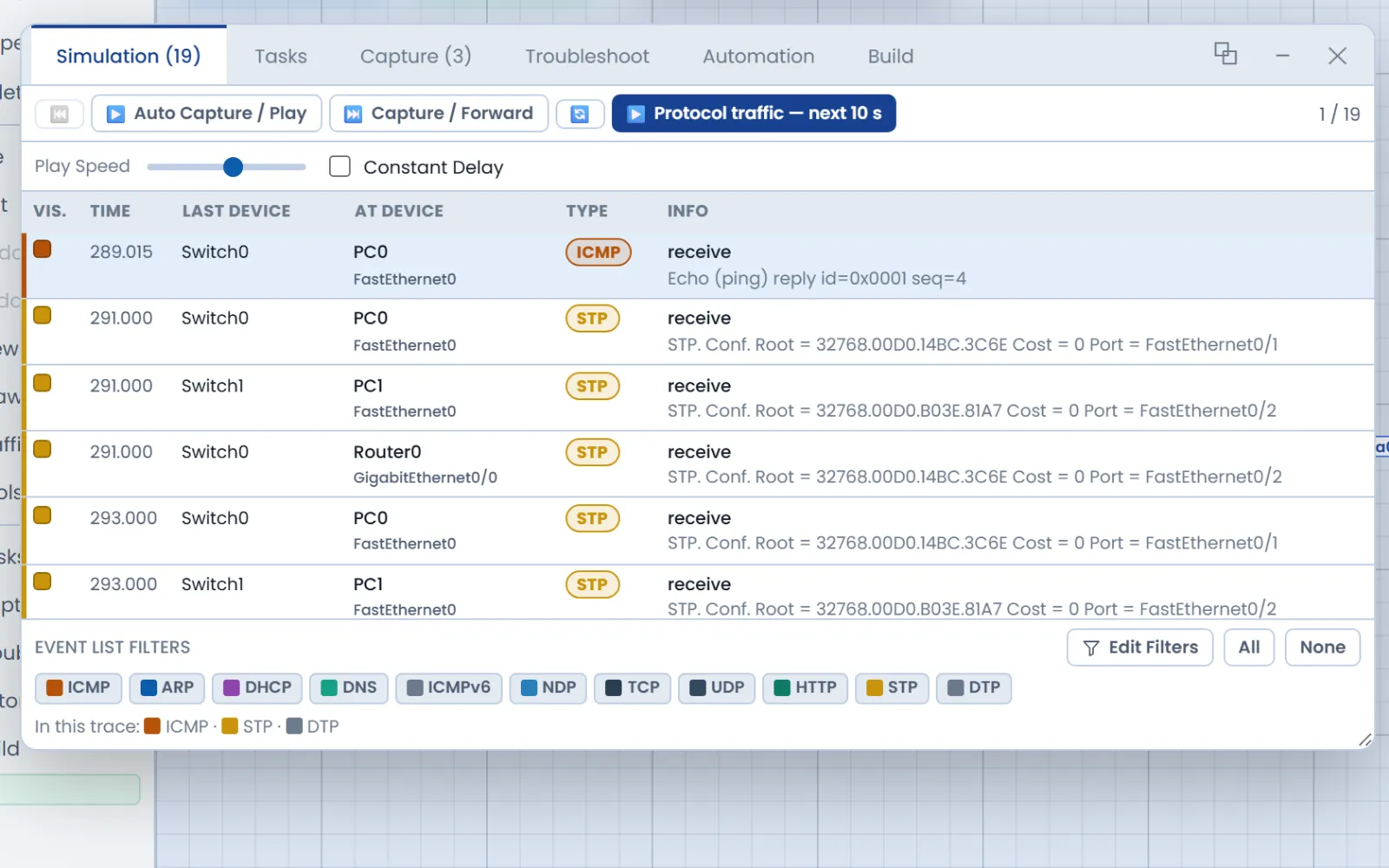
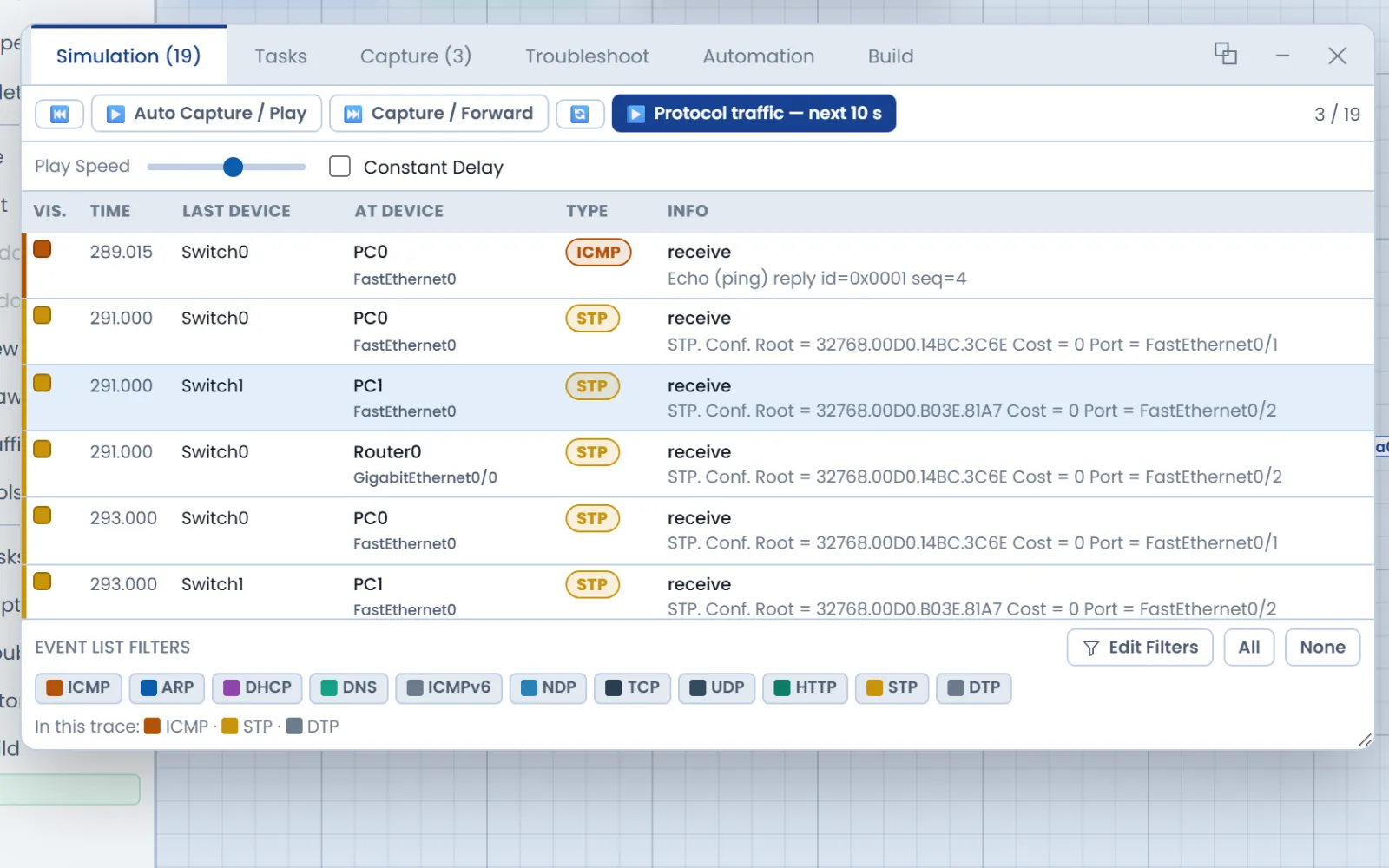
- Simulation mode
- The next 10 s, listed
- Step frame by frame
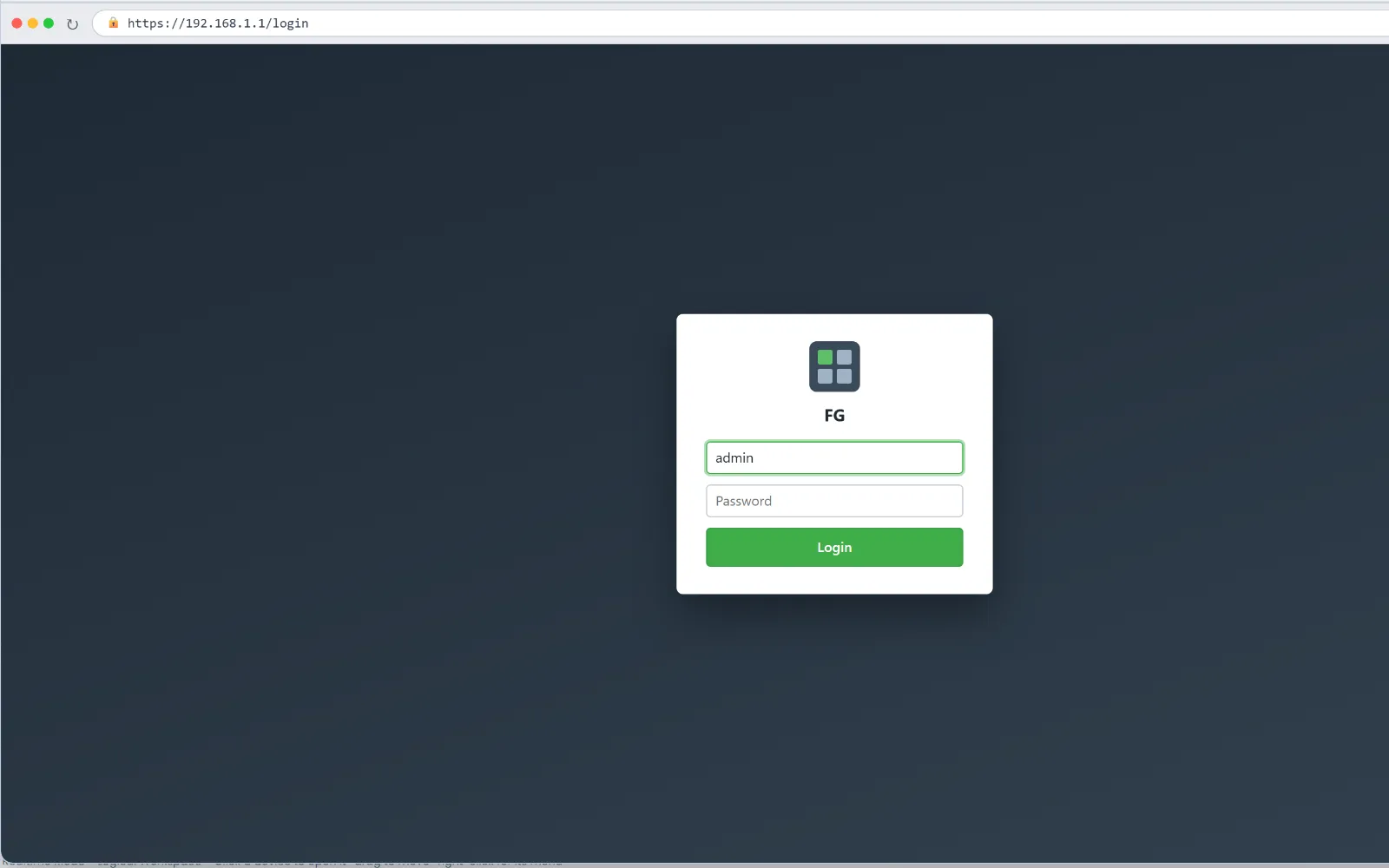
- Sign in
- The dashboard
- Network › Interfaces
- The policy you added
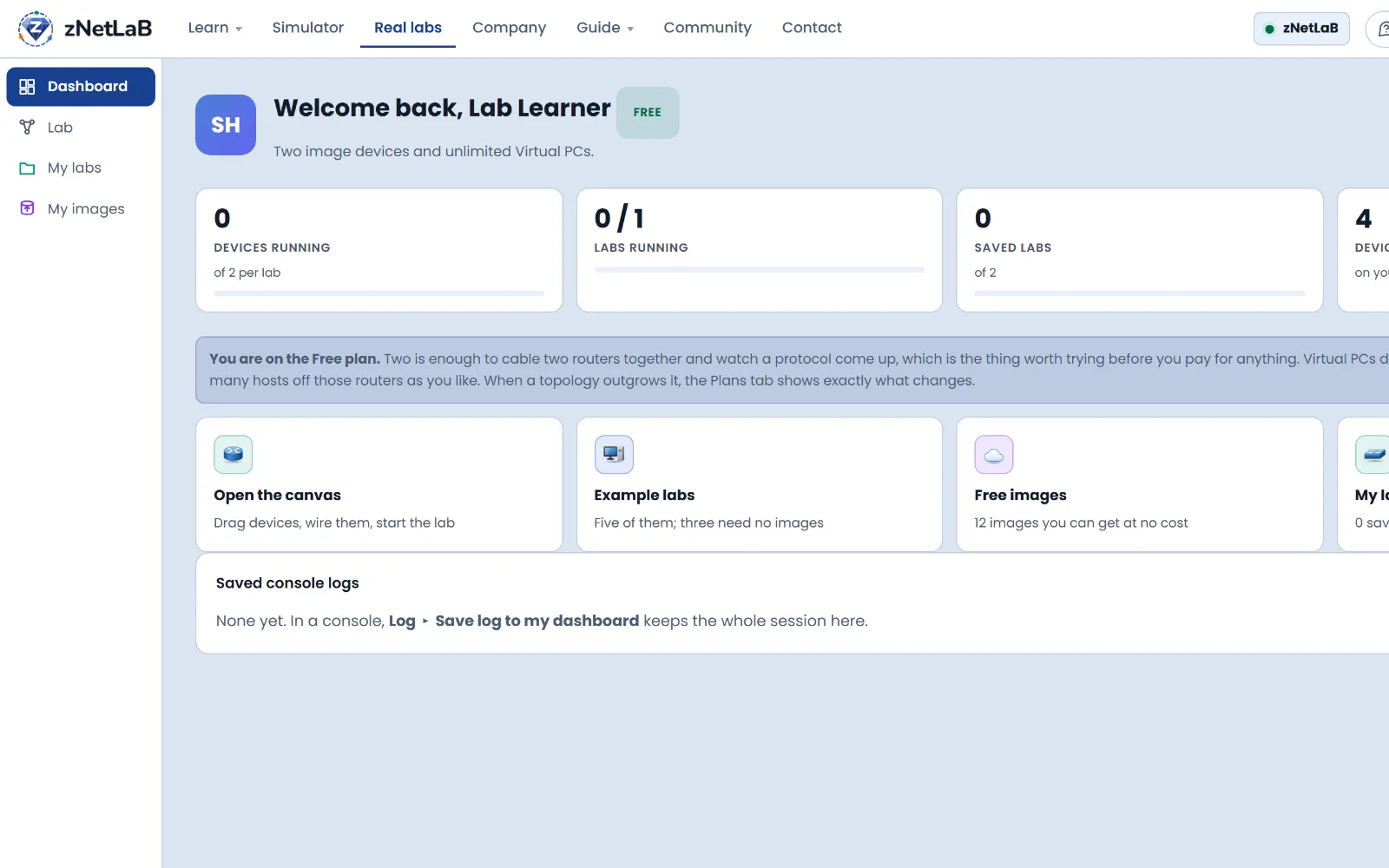
- Your dashboard
- The device library
- A topology on the canvas
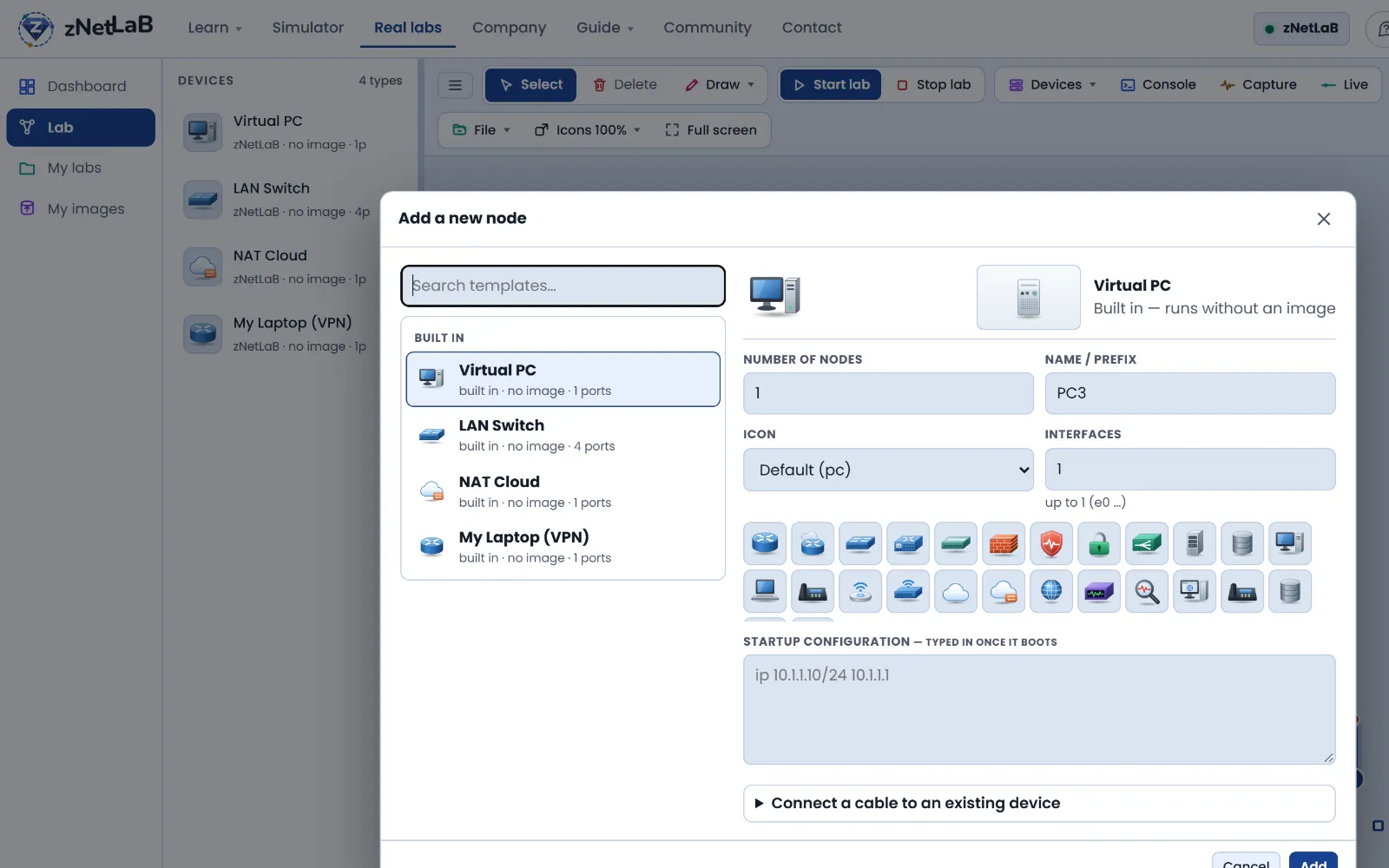
- Add node
What is in the box
Both halves share one account, one design and one set of ideas. You move between them without noticing a seam.
Real command syntax
Each device takes its vendor's command syntax, and show output keeps the
familiar layout, including the lines everyone forgets are there. The ? descriptions are written by zNetLaB.
Devices are data, not code
Pick a device from the open-source library, or upload your own licensed image under My images, and it is ready with the right RAM, disk bus and interface naming. Nobody edits JavaScript.
Hosts that cost nothing
The Virtual PC is a Linux network namespace and the LAN Switch is a kernel bridge. Real ARP, real MAC learning, no licence.
Captures you can trust
On a real lab the frames come from tcpdump on the bridge. Simulated
frames are labelled as simulated, always.
Your terminal, not ours
Every running device gets a telnet port. Use the console in the page, or the terminal client you already have — they share one session.
No images bundled
Vendor software is licensed by its vendor. You supply what you are licensed to run — which is the only position a tool that bundles nothing can take.
What zNetLaB does, and where it stops
Four places zNetLaB is the wrong answer, written down before you pay rather than discovered afterwards. If one of them is your situation, the honest recommendation is not us.
The images are yours, and that cuts both ways
zNetLaB ships no vendor software at all. You supply what you are licensed to run, and zNetLaB's job is to recognise it and boot it correctly.
What that buys you
122 platforms are recognised from the image filename alone, each with the memory, disk bus, NIC model and interface naming it actually needs — so an image library you already have works unchanged, with no template to write by hand. Cisco, Juniper, Arista, Fortinet and the open-source routers sit in one topology instead of one vendor's.
Where that leaves you short
If you hold no licence and need genuine IOS-XE, NX-OS or IOS-XR, nothing on our side substitutes for a licence on yours. That is a purchase from the vendor, and no amount of platform engineering here changes it. The whole open-source library works with no licence; vendor platforms wait on your own licence.
The simulator is a simulation, and says so
The simulator reimplements protocol behaviour in JavaScript rather than running vendor code, which is exactly why it opens instantly in a browser tab.
What that buys you
It starts in a browser tab with nothing installed, marks 2000+ labs against the state of the network rather than the text you typed, and never pretends: a real command it does not simulate says so, with a pointer to the real labs, and a simulated frame is labelled simulated in the list and in the exported file. What it does simulate is covered by automatic tests that run whole scenarios across several devices.
Where that leaves you short
What it knows has an edge, and you will reach it. The day you need a command it was never taught, or the specific way one release behaves, a simulation cannot answer — that is the day you move to the lab server and a real image. It is the same account, which is the point, but it is not the simulator.
Real labs run on a server, not on your laptop
Devices boot under Dynamips, QEMU or Docker on a Linux machine, and you reach their consoles over the network.
What that buys you
A six-device lab does not need six devices' worth of your own memory. Nothing is installed on your computer, so a managed laptop cannot refuse it, and an evening that gets interrupted costs nothing — the lab, its topology and configurations, is saved. The devices stop 10 minutes after nobody is connected, or after 3 hours idle; press Start to bring them back.
Where that leaves you short
It needs a network to reach. If you want a lab that runs on hardware you own, entirely offline, on a train or behind an air gap, the hosted half is not that. zNetLaB Desktop is: the same zNetLaB on your own Windows or Linux computer, with your own memory and your own images.
No emulator is hardware
Each link on a real lab is a Linux bridge and each capture is taken on it, so the frames and the timings are real in the sense that matters for protocols.
What that buys you
Captures you can act on rather than admire: a plain .pcap that
opens in whatever analyser you already use, 29 protocols audited against the
cable they crossed, and link conditioning — bandwidth, delay, jitter, loss —
so you can watch a protocol behave the way it does on a bad circuit.
Where that leaves you short
Optics, line cards, power, cabling mistakes and the specific way a chassis fails are not reproduced here and will not be. If the exam or the change window you are preparing for turns on physical behaviour, you need the hardware, and we would rather say so now.
What people say
Reviews from signed-in users, shown after we check them.
Used zNetLaB for a lab, a course or a certification? Tell us how it went — the good and the parts that wasted your time. We will ask before we print anything, and we will print it as you wrote it.
Priced by the devices that need an image
Every lesson is free, permanently, and the browser simulator is free to try. What the real-lab plans buy is memory on a server booting lab images, and they are priced by how many devices in a lab boot one. Virtual PCs are never counted, on any plan.
in one lab
in one lab
in one lab
in one lab
in one lab
Per month. A device counts only when it boots an image — Virtual PCs, LAN Switches, NAT Clouds and My Laptop (VPN) are unlimited on every plan, including the free one. Past twenty devices, talk to support.
See the plans and work out your costQuestions people ask first
The eight that come up before anybody signs up, answered in full rather than pointed at a sales page. Every answer is on this page whether you open it or not.
No question matches that. Ask it instead.
Is the network simulator free?
It is free to try, and the trial is complete — nothing is held back. Every new account gets 5 days, and the first 100 new accounts get 15 days; after that the simulator is a low-cost subscription by the month, six months or the year.
- All 2000+ guided labs, every track and every level, unlimited attempts, topologies up to sixty devices.
- The simulator speaks many vendor CLIs — Cisco IOS,
IOS-XE, NX-OS and ASA, Juniper Junos, Arista EOS, FRRouting and more — with
?and Tab help in every mode, and Wireshark-style packet capture with a layer tree, hex, display filters and.pcapexport. - A command a real device supports but the simulator does not yet simulate says so and points you to the real labs.
Reading the lessons stays free and needs no account at all; the simulator needs an account so it can save your work. Real-image labs are priced separately, by the server space they use, never by the images.
Does zNetLaB include Cisco IOS images?
No. IOS, Junos and other vendor software are licensed by their vendors, and redistributing them would be infringement. You supply images you are licensed to run — the only honest position a tool in this field can take.
The built-in Virtual PC, LAN Switch, NAT Cloud and My Laptop (VPN) need no image at all.
Do I need a virtualisation tool installed?
Not for the online labs. Emulation runs on a Linux lab server under Dynamips, QEMU or Docker and reaches you through the browser, so only the server administrator needs virtualisation.
If you would rather work offline, zNetLaB Desktop installs the same zNetLaB on your own Windows or Linux computer. On Windows it uses WSL2, the Linux that is built into Windows, so there is no VMware or VirtualBox to install.
Can I do CCIE-level labs without a Cisco licence?
For the protocols, yes. FRRouting, VyOS, MikroTik CHR, Cumulus VX and Arista vEOS are free, and between them cover BGP, OSPF, IS-IS, MPLS L3VPN, VXLAN with EVPN, IPsec, multicast and QoS.
What they do not give you is Cisco's command syntax, which is what a Cisco Modeling Labs licence is for.
What do the paid plans actually buy?
Memory on a server, counted in devices. A plan sets how many devices in one lab may boot an image (open-source or your own):
- Free is two at $0.00,
- Starter four at $2.00 a month,
- Standard six at $3.00,
- Advanced ten at $10.00
- and Expert twenty at $20.00.
Virtual PCs, LAN Switches and NAT Clouds need no image and are never counted, however many you connect. One account runs one lab at a time on every plan, because a lab belongs to the window that opened it. Every feature is in every plan, including the free one.
Past twenty devices, or for a company account, talk to support and an administrator will build the plan around what you need.
Can I open the same real lab in two tabs or two browsers?
No, and that is deliberate. A real lab runs in one browser tab at a time. The window that started the work keeps it, and a second tab or a second browser is told so immediately rather than quietly starting a second set of devices you would be paying for.
The browser simulator has no such limit, because it runs on your own machine and costs nobody anything.
Signing in on a second device signs the first one out, so a phone and a laptop each need their own account.
What happens to my work when I close the tab?
The simulator saves as you go, into this browser, and reopens where you left off.
You can also save a topology to your account — File → Save to the portal — and open it on another machine, or save it to a .znetsim file and keep it yourself.
On the lab platform a topology belongs to your account rather than to the tab, and devices left running are warned and then stopped after three idle hours, or ten minutes after nobody is connected, so nothing bills you overnight.
Which vendors can I run besides Cisco?
The site library holds open-source devices, ready to use with no licence: FRRouting, VyOS, OpenWrt, BIRD, VPP and Infix; Linux distributions such as Debian, Ubuntu, Fedora, AlmaLinux and Alpine; OpenBSD; IPCop and Smoothwall firewalls; and FreeNAS and OpenMediaVault. Between them they cover BGP, OSPF, IS-IS, MPLS, VXLAN and IPsec.
Vendor devices — Cisco IOSv, CSR1000v, Nexus 9000v and ASAv, Juniper, Arista, Fortinet, Palo Alto and the rest — run only from your own licensed image, uploaded under Profile → My images and private to your account.
The browser simulator, separately, imitates many of these CLIs for practice with no image at all — Cisco IOS-XE and NX-OS, ASA, Junos, Arista EOS, FRRouting, FortiGate, Palo Alto PAN-OS, Huawei VRP, MikroTik RouterOS, Aruba, Nokia SR OS, Check Point and VyOS.
zNetLaB recognises 122 platforms by their image filenames and sets the memory, disk bus and interface naming each one needs. See the copyright policy.
Start in the browser. Move to real images when you need to.
The simulator opens in this tab and is free to try. When a lesson stops being enough and you need genuine vendor software on real interfaces, the same account already has it — from $0.00, and you only ever pay for devices that need an image.
CCNA®, CCNP® and Cisco® are trademarks of Cisco Systems, Inc. zNetLaB is not affiliated with or endorsed by Cisco.